Custom MCP Servers
Beyond the connectors in Rephlo's catalogue, you can connect a custom MCP server that you operate yourself — or one run by someone you trust. This is for advanced users who already have an MCP server and a token to access it.
Custom servers are added in the desktop app under Settings → Connectors → Add custom connector. There is no web UI for this; everything happens locally on your machine.
Before you start
You'll need:
- An MCP server you can reach (its command, or its URL).
- A bearer token for that server, if it requires authentication.
Authentication today is bearer-token only. Custom servers currently authenticate with a single pre-shared bearer token — you paste a token, and Rephlo sends it with each request. OAuth-based custom servers (where you sign in through a browser, as with Notion) are not supported yet and will arrive in a later release.
Adding a custom server
- Open Settings → Connectors and click Add custom connector.
- Give the server a name so you can recognize it later.
- Choose a transport — how Rephlo talks to the server:
- Streamable HTTP — Rephlo connects to a server URL over the network.
- Stdio — Rephlo launches a local executable and talks to it directly on your machine.
- Fill in the transport-specific settings (see the table below).
- Paste the server's bearer token.
- Save. Rephlo connects, asks the server which tools it offers, and the server's tools become available in chat.
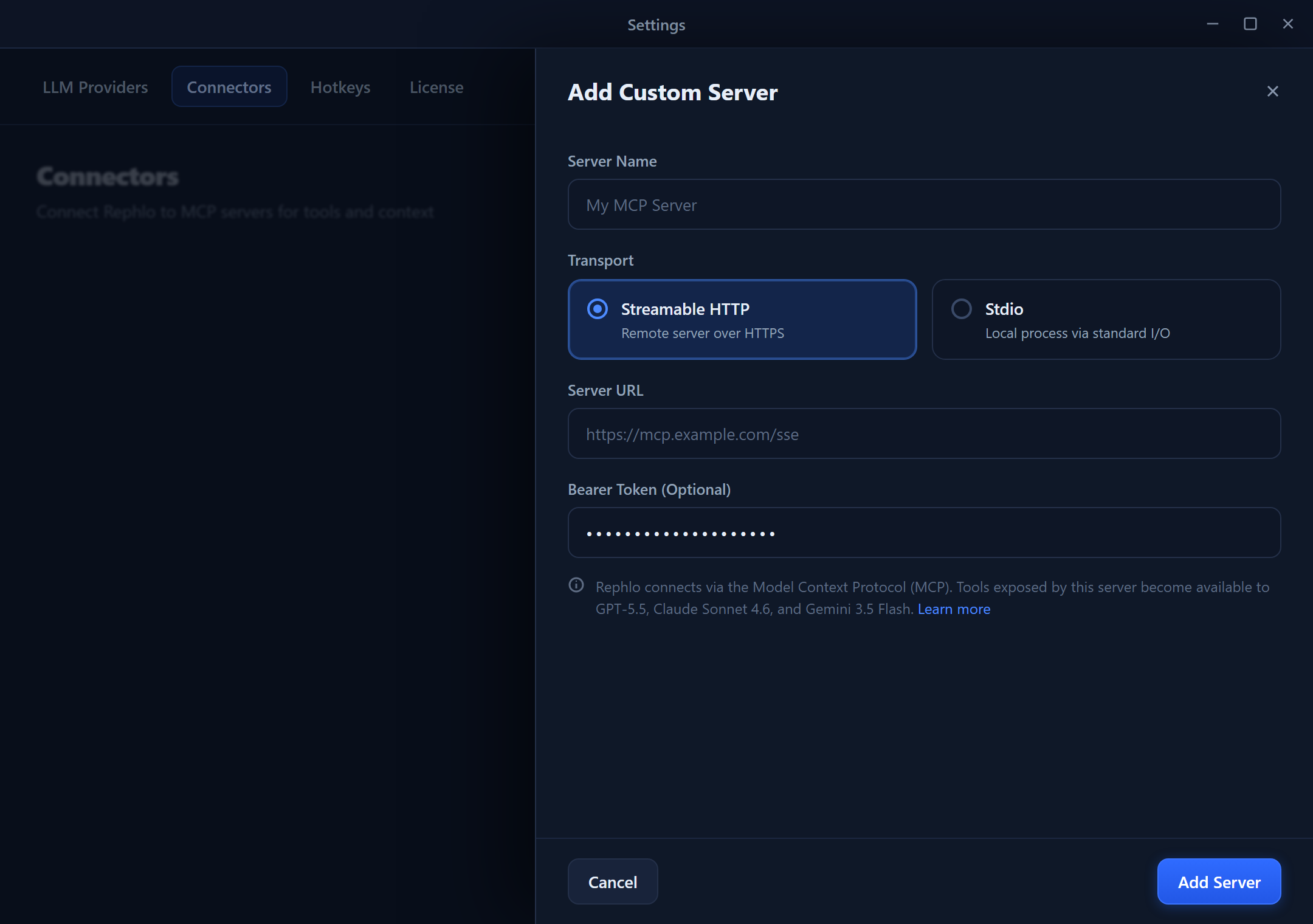
The Add custom connector panel, with transport selection and the bearer-token field.
Transport settings
| Transport | Required | Optional |
|---|---|---|
| Streamable HTTP | Server URL | A bearer token for authentication |
| Stdio | Executable path to launch | Arguments |
Rephlo's own connector catalogue pins some servers to a SHA-256 binary hash for extra verification, but that's managed on Rephlo's side — it isn't a field you set when adding your own custom connector.
Where your data lives
- Custom servers and their bearer tokens are stored on your device, encrypted at rest. They are not sent to Rephlo's backend.
- Custom-server tool calls run directly from your desktop to the server — they don't route through Rephlo's cloud.
- As with all connectors, tool results live in memory during the session, and the local audit log records only the tool name, duration, and status — never arguments or content.
Troubleshooting
The server rejects the connection (401 / unauthorized). The bearer token is wrong or has been rotated. Remove the server and re-add it with the correct token.
The connection times out. Check that the server URL is reachable and that the server responds reasonably quickly — tool calls have a fixed time limit. If the server is simply slow, look into its performance or availability.
Tools don't appear, or tool calls fail to parse. The server must speak valid MCP and declare its tools when Rephlo connects. Confirm the server emits well-formed MCP tool definitions and responses.