Teams & Organizations
A workspace (also called an organization) is how Rephlo keeps a team's commands, collections, and settings together in one place. If you use Rephlo on your own, you have a personal workspace and most of this page won't apply. If you're on a Team or Enterprise plan, your workspace is where you and your colleagues share work.
This page focuses on the day-to-day team features: switching workspaces, sharing commands and collections with your team, auto-share, and seeing who installed what. Administrative setup (adding members, roles, single sign-on, billing) is kept brief on purpose — see Workspace administration at the bottom.
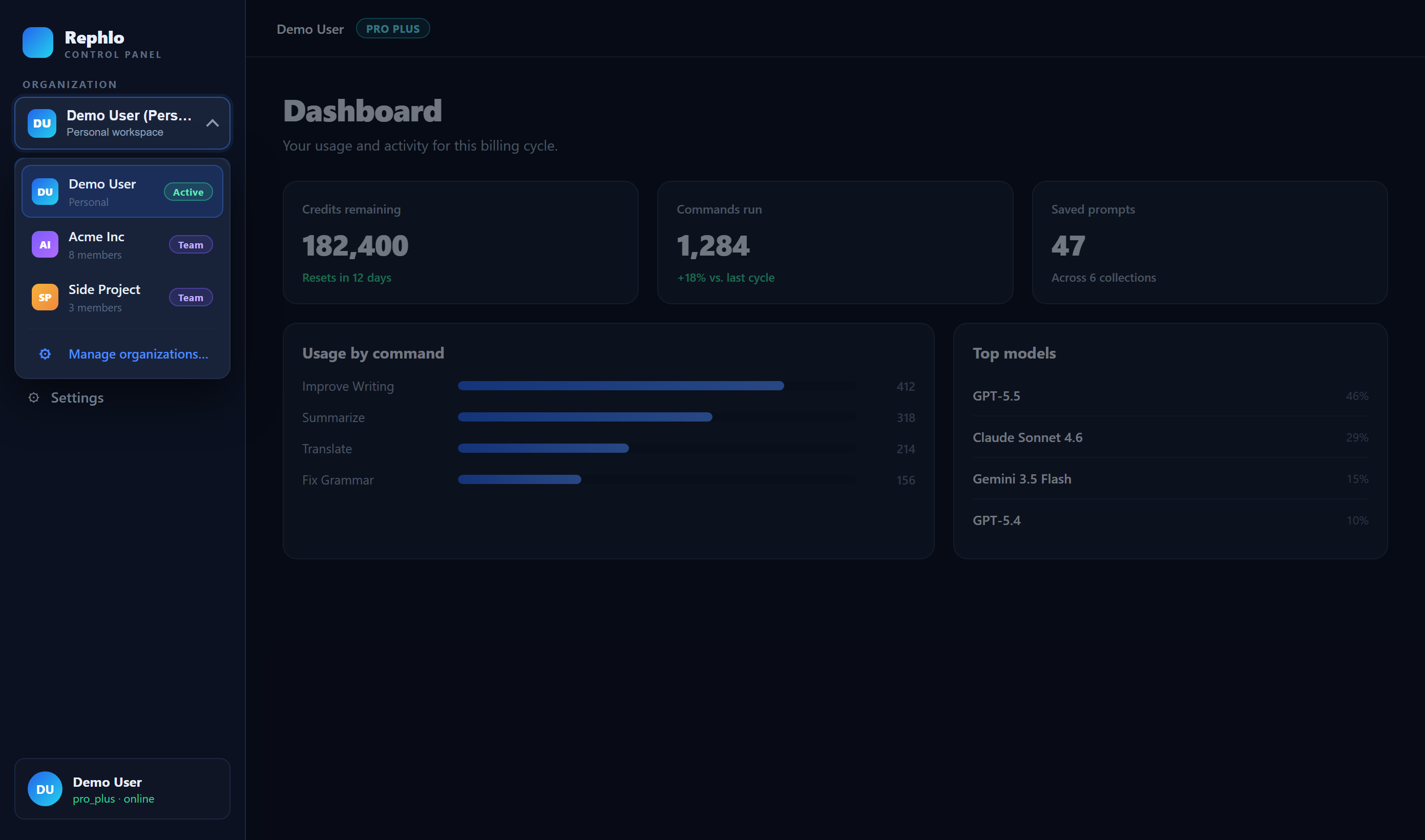
Workspaces and switching between them
You can belong to more than one workspace — for example, your personal workspace and your company's team workspace. Your commands, collections, and groups are scoped to the active workspace, so switching changes what you see.
To switch, use the workspace switcher described in Multi-org / Workspace Switching. When you move between workspaces, your shared commands and collections automatically follow the workspace they belong to.
Sharing commands with your team
When you share a command with your organization, it becomes available to your teammates to install and use. Open a command you own and choose Share with org.
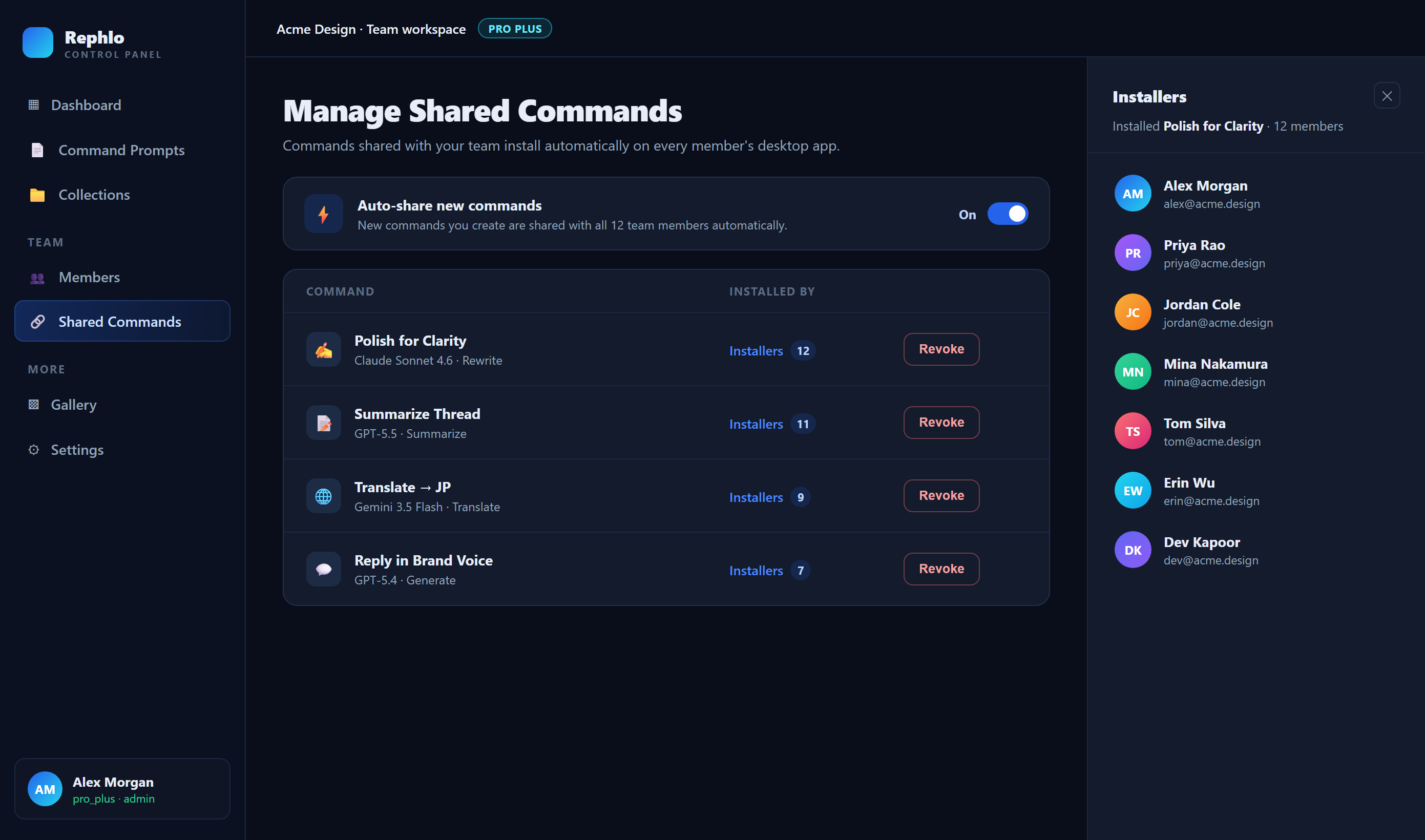
You can review and manage everything you've shared from Manage Shared Commands in your workspace. For each shared command you can:
- See who installed it — open the Installers list to see which teammates have the command, the platform they're on, their app version, and the date they installed it.
- Turn on Auto-share — when enabled, new and updated versions are pushed to your teammates automatically, so they always have the latest copy without re-installing.
- Revoke — stop sharing the command with your team. Teammates who already installed it keep their copy.
Auto-share, explained
Without auto-share, a teammate installs the version of a command that existed when they installed it. If you improve the command later, they keep the old version until they install it again.
With auto-share on, your teammates' copies stay in sync with your edits automatically. Turn it on for commands you maintain centrally for the whole team, and leave it off when you'd rather people opt in to changes themselves.
Sharing collections with your team
You can also share a whole collection — a bundle of commands — with your team in one step. Open the collection and choose Share with org; it becomes Protected and appears on your teammates' team tab.
Manage shared collections from Manage Shared Collections in your workspace, where you can Revoke a share at any time. Collection sharing is a simpler version of command sharing: there's no installer list or auto-share toggle for collections yet.
Finding what your team has shared
Shared content shows up automatically in the places you already use:
- On Collections & Groups, the [Team] and All tabs list collections your colleagues have shared.
- Commands shared with the team are available to install from your library and the gallery.
Workspace administration
Setting up and running a workspace — adding or removing members, assigning roles, configuring single sign-on (SSO), claiming your email domain, managing seats and billing, and transferring ownership — is handled by your workspace owner or admin in your workspace settings.
These controls live in your workspace's admin area and are available on Team and Enterprise plans. If you need to:
- invite or remove a teammate,
- change someone's role,
- set up SSO or domain claiming,
- adjust how many seats you pay for, or
- transfer ownership to another person,
manage it in your workspace settings, or contact support if you can't find the option or need help. For an overview of plans that include team features, see Plans & Pricing and the current details at rephlo.app/pricing.
Related pages
- Multi-org / Workspace Switching — switch between your workspaces.
- Collections & Groups — bundle and share sets of commands.
- My Commands — create and share your own commands.
- Plans & Pricing — which plans include team and enterprise features.