Switching Workspaces
Rephlo lets you belong to more than one workspace (organization) at the same time — for example, your own personal workspace plus a team or company workspace. Each workspace has its own commands, members, and settings. This page explains how membership works and how to move between workspaces.
How workspace membership works
Every account always has one personal workspace. On top of that, you can be a member of any number of team or enterprise workspaces (zero or more of each), depending on the teams you've joined or been invited to.
At any moment, exactly one workspace is active — that's the context you're working in. The active workspace determines which commands and settings you see.
The workspace switcher
If you belong to two or more workspaces, a workspace switcher appears in the sidebar. (If you only have your personal workspace, there's nothing to switch between, so the switcher stays hidden.)
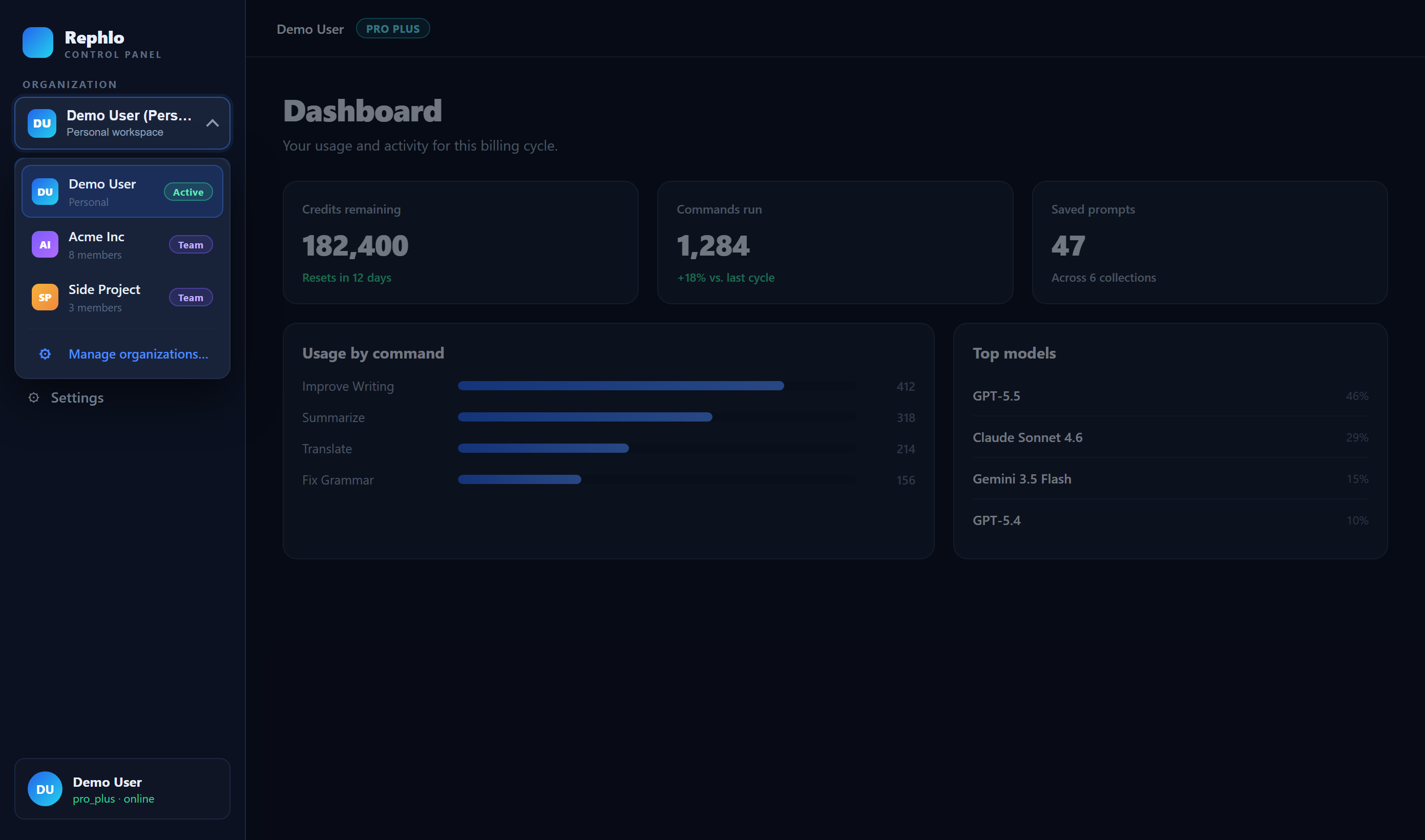
The switcher shows your active workspace name. Open it to see all your workspaces. Each row shows:
- The workspace name.
- A type chip — Personal, Team, or Enterprise.
- An Active badge on the workspace you're currently in.
- Your role in that workspace.
Switching to another workspace
- Open the workspace switcher in the sidebar.
- Click the workspace you want to switch to.
- Rephlo switches your active workspace for you — no need to re-enter your password — and reloads the page so everything reflects the new context. You'll see a brief confirmation toast.
Rephlo also remembers your last-used workspace, so the next time you sign in you usually land right back where you left off. If you're a member of multiple workspaces, you may also see a workspace picker on the sign-in screen — see Signing In & Authentication.
Leaving a workspace
You manage memberships from the Workspaces section of Account Settings, where each workspace you belong to is listed.
- Team workspaces show a Leave button (if you're not the owner). Confirm in the dialog, and Rephlo removes you and reloads you into another active workspace.
- Your personal workspace can't be left — it's always yours.
- Enterprise workspaces can't be left from here; an administrator has to remove you.
- Owners can't leave their own organization while they own it.
Roles and team administration
Your role in each workspace (such as member, admin, or owner) controls what you can do there. Enterprise-admin topics — inviting and removing members, assigning roles, single sign-on, seat billing, and transferring ownership — are handled in your workspace's admin settings. For most of those, manage them in your workspace settings or contact support. For an overview, see Teams & Organizations.