Account Settings & Preferences
Account Settings is your control center. From one page you can set up your public author profile, choose a username, switch themes, manage notifications, export your data, manage workspaces, and — if you ever need to — delete your account.
The page is divided into clearly labeled sections. Here's what each one does.
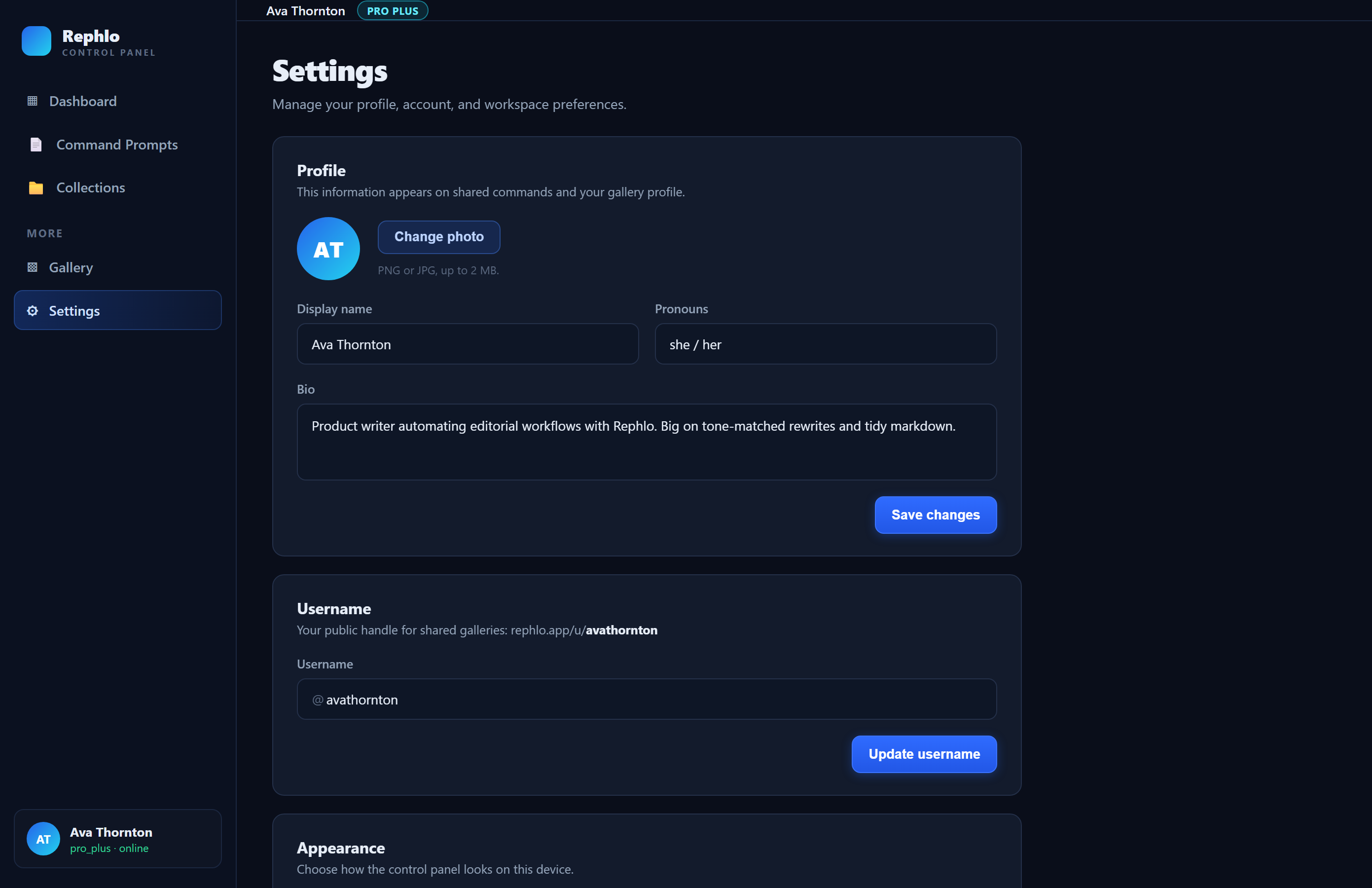
Profile
These settings power your public author profile (the page other people see at /author/your-username).
- Avatar URL — paste a link to an image to use as your public avatar. (Direct avatar upload is coming soon; for now, provide a URL.)
- Bio — a short description, up to 280 characters.
- Public Profile — a toggle that makes your profile and published commands visible at
/author/your-username. When this is off, your public profile returns "not found" to visitors.
Click Save Profile to apply your changes. To see what visitors will see, read Public Author Profile.
Username
Your username is your public identity on Rephlo (it appears as @username and forms your public-profile URL).
- Usernames are 3–30 characters and may contain only letters, numbers, underscores, and hyphens.
- You can change your username once every 90 days.
To set or change it, click Change (or Set), type a new username, and save.
If the name is already in use, you'll be asked to pick another. If you've changed it within the last 90 days, Rephlo tells you the date you can change it again.
Appearance
Choose your theme: Light, Dark, or System (follow your operating system). Your choice is saved to your account, so it follows you across devices and browsers.
Notifications
Two toggles let you control account emails:
- Email Notifications — updates about your account activity.
- Usage Alerts — get notified when your credit usage reaches 80% of your limit. See Credits & Usage for how credits work.
Changes save instantly as you flip each toggle.
Account
- Change Password — opens Rephlo's secure sign-in service so you can set a new password (passwords aren't managed inside the dashboard).
- Export Data — downloads a JSON file containing your preferences and settings, so you always have a copy of your account data.
Workspaces
If you belong to organizations, this section lists each workspace you're a member of:
- A type chip (Personal, Team, or Enterprise).
- An Active badge on your current workspace.
- Your role in each.
- A Leave button on team workspaces (where you're not the owner).
You can't leave your personal workspace, and enterprise workspaces require an admin to remove you. Switching between workspaces is done from the sidebar switcher — see Switching Workspaces. This section appears only when you're a member of one or more organizations.
Danger Zone — deleting your account
At the bottom is the Danger Zone. The Delete Account button opens a confirmation dialog (you'll type a confirmation word) before anything happens. Deleting your account is permanent — all your data, commands, and preferences are removed. After confirmation, you're signed out and returned to the login screen.
Account deletion cannot be undone. If you only want to stop a subscription, manage that under Subscriptions instead of deleting your account.