Your Profile
Your profile page is a quick, single-screen summary of who you are on Rephlo: your name, email, current plan, and which organization you belong to. It's also where you keep your display name up to date.
What's on the page
The profile page is organized into a few simple cards.
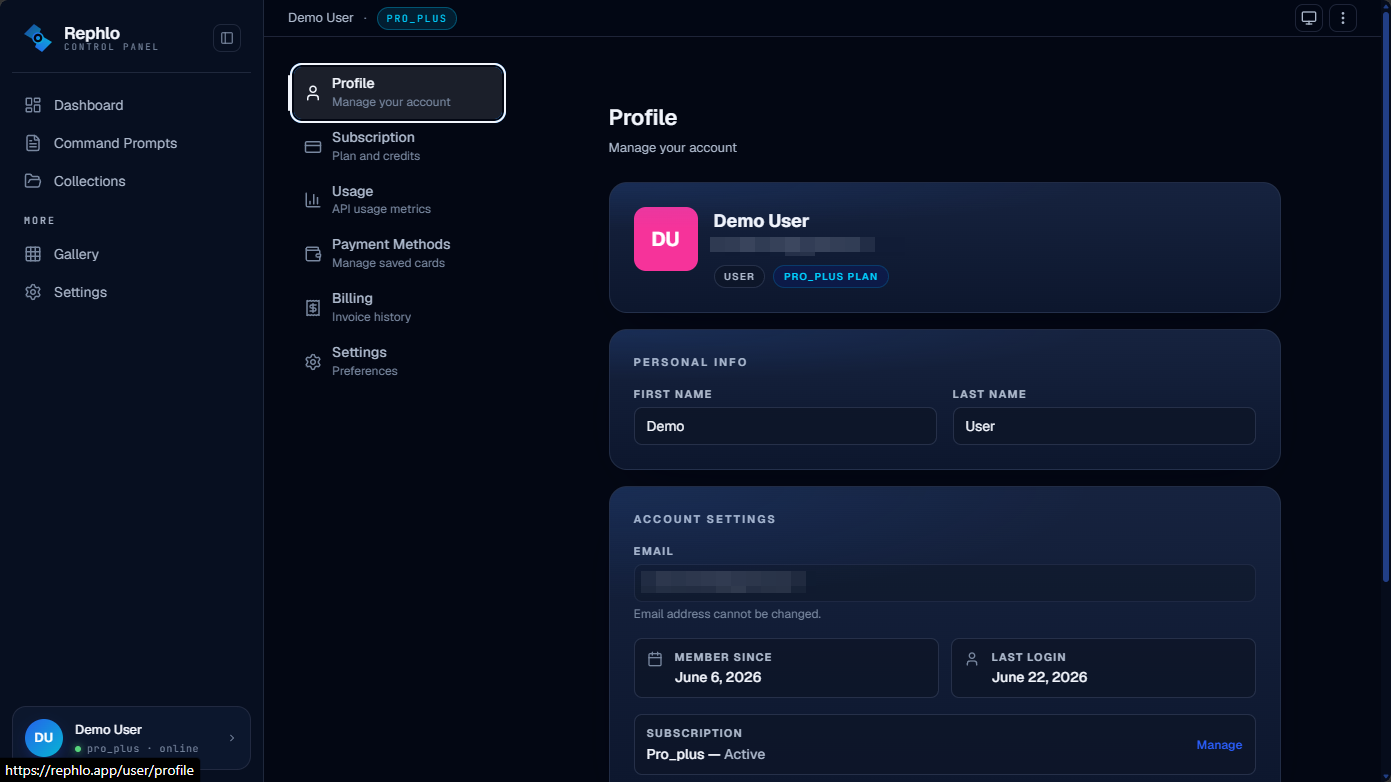
Header card
At the top you'll see:
- An avatar built from your initials (color is derived from your email, so it's consistent).
- Your display name and email.
- A role badge (for example, Admin or Member) and a plan badge (Free, Pro, Enterprise, and so on).
Personal info
This is the editable part of the page. You can update your first name and last name. Changes are saved when you click Save changes (the Save and Discard buttons appear only once you've edited a field). Names must be at least two characters. Your display name updates everywhere — including the header and sidebar — as soon as you save.
Account settings (read-only)
This card shows account context you can't edit here:
- Email — read-only. Your email cannot be changed from this page.
- Member since — the date your account was created.
- Last login — when you most recently signed in.
- Subscription — your current tier and status, with a Manage link to your subscription.
Organization
If you're part of an organization, this card shows the organization name and your role in it. Owners and admins of a team or enterprise workspace see a Manage organization link that opens the workspace-admin area. Members (non-owners) see a Leave organization option. Your personal workspace can't be left. For more on workspaces and roles, see Teams & Organizations and Switching Workspaces.
Email verification
If your email isn't verified yet, a banner appears at the top of your profile with a button to resend the verification email. Verifying your email unlocks the full app. See Signing In & Authentication for the full verification flow.
Profile vs. public author profile
The profile page described here is private — it's your account summary. It's different from your public author profile, which other people can see when you publish commands. Your public avatar, bio, and the "make my profile public" toggle live in Account Settings, and the resulting public page is described in Public Author Profile.
Changing your password
Your password is managed by Rephlo's secure sign-in service, not on this page. To change it, use Change Password in Account Settings, which takes you to the sign-in service to set a new one.