Signing In & Authentication
Your Rephlo account is the single key to everything: the web platform, your command library, your billing, and the desktop app. This page explains how signing in works, how to create an account, what to do if you forget your password, and how the desktop app and the web sign you in together.
How Rephlo signs you in
Rephlo uses a dedicated, secure sign-in service (an OAuth 2.0 / OpenID Connect identity provider) rather than handling your password directly inside each page. When you sign in, you are briefly handed to this service, you authenticate, and you are sent back to the app with a secure token. You never type your password into the dashboard itself.
Why this matters to you:
- One login everywhere. The same account works on the web dashboard and in the desktop app.
- Stays signed in. Your session is remembered for up to 30 days, so you don't have to log in every time you open your browser. Rephlo quietly refreshes your session in the background before it expires.
- Secure by design. Sign-in uses the industry-standard OAuth 2.0 authorization-code flow with PKCE. Your credentials never touch the dashboard code.
Signing in
- Click Sign In (or go to the login screen).
- You'll see a Sign in with Rephlo button. Click it.
- You're taken to the secure sign-in screen. Enter your email and password, or use a supported single sign-on option such as Google.
- After you authenticate, your browser returns to Rephlo and you land on your profile or wherever you were heading.
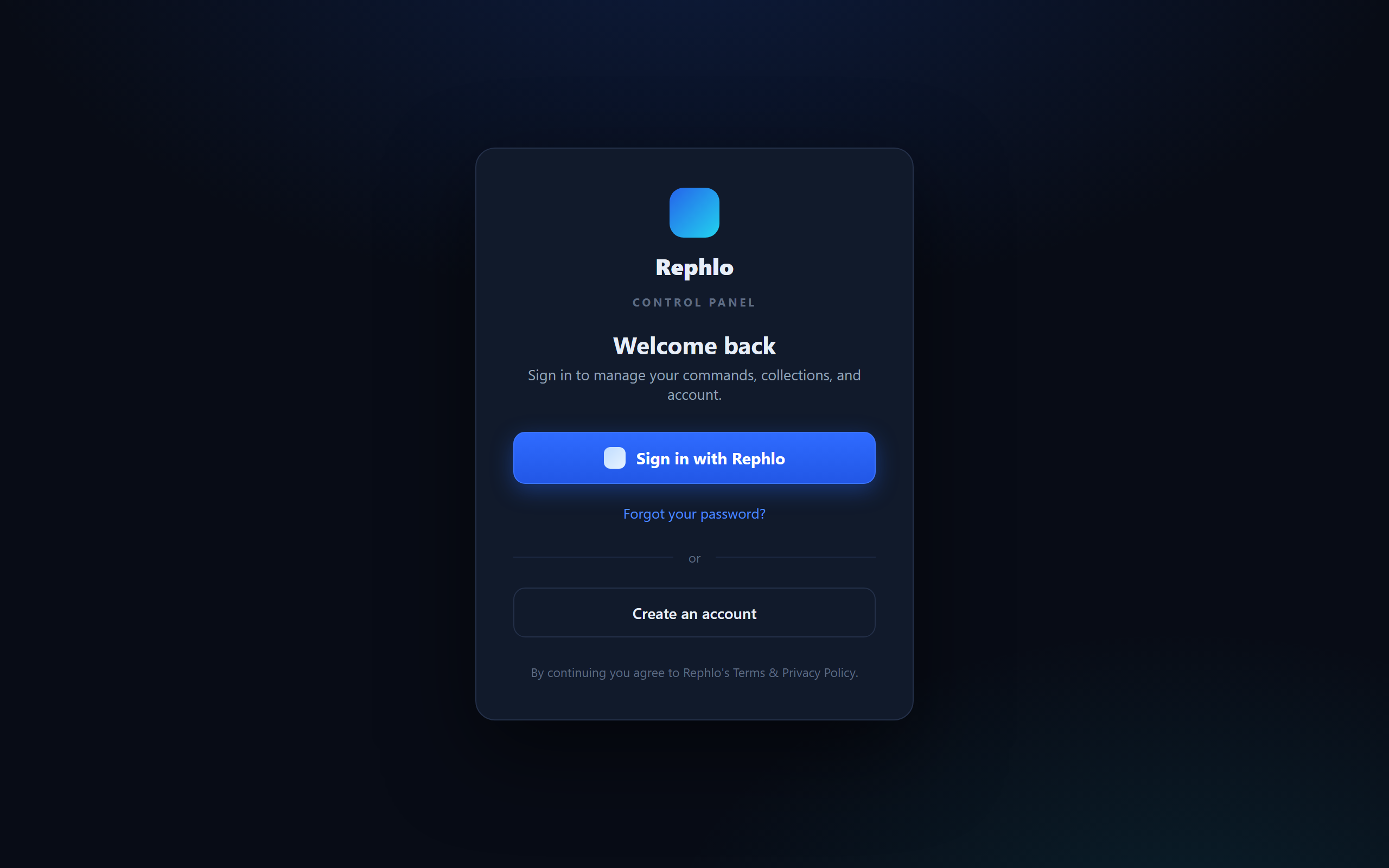
If something goes wrong (for example you cancel authorization), Rephlo shows a clear error with a Try again button.
Creating an account
If you don't have an account yet, choose Create an account on the login screen (shown when self sign-up is enabled). You'll be taken to the sign-up form on the secure sign-in service, where you provide your email and a password, or sign up with Google.
After sign-up, you'll be prompted to verify your email before you can use the full app.
Verifying your email
Email verification protects your account and confirms you own the address.
- After registering, Rephlo sends a verification email containing a unique link. This link expires in 24 hours.
- Click the link to verify. You'll see an Email verified! confirmation, and you can continue to sign in.
- Until your email is verified, you'll see an unverified email banner on your profile, and some actions are blocked.
Didn't get the email?
On the verification screen, click Resend Verification Email (or Request New Verification Email). To prevent abuse, resending is rate-limited, so wait a moment between attempts and check your spam folder. The new link also expires in 24 hours.
Forgot or reset your password
- On the login screen, click Forgot your password?
- Enter your email address. If an account exists, you'll receive a password-reset email.
- Open the link in that email and choose a new password.
- Once reset, return to the login screen and sign in normally.
Because your password lives with the secure sign-in service (not the dashboard), password resets and changes always happen there. To change a password while signed in, use the Change Password option in Account Settings.
Signing in from the desktop app
The desktop app shares the same account as the web. When you sign in from the desktop app:
- The desktop app opens your browser to the same secure sign-in screen.
- You sign in (or you're already signed in on the web, so it's instant).
- The browser hands you back to the desktop app automatically using a Rephlo deep link (
app.rephlo://…), and the app picks up your session.
This is the same deep-link mechanism Rephlo uses to send commands from the web into the app, so an Open in Rephlo button can launch the installed app directly. See Desktop & Web Together for how the two halves work as one product.
Multi-organization sign-in
If you belong to more than one organization (workspace), the sign-in service may show you an organization picker during login so you can choose which workspace to enter. Rephlo also remembers your last-used workspace so you usually land in the right place automatically. You can change workspaces any time after signing in — see Switching Workspaces.
Staying signed in and signing out
- Your session is remembered for up to 30 days and refreshes silently in the background.
- If your session does expire, you'll see a Session Expired notice and a prompt to sign in again.
- Signing out clears your stored session on that device.