Your Dashboard
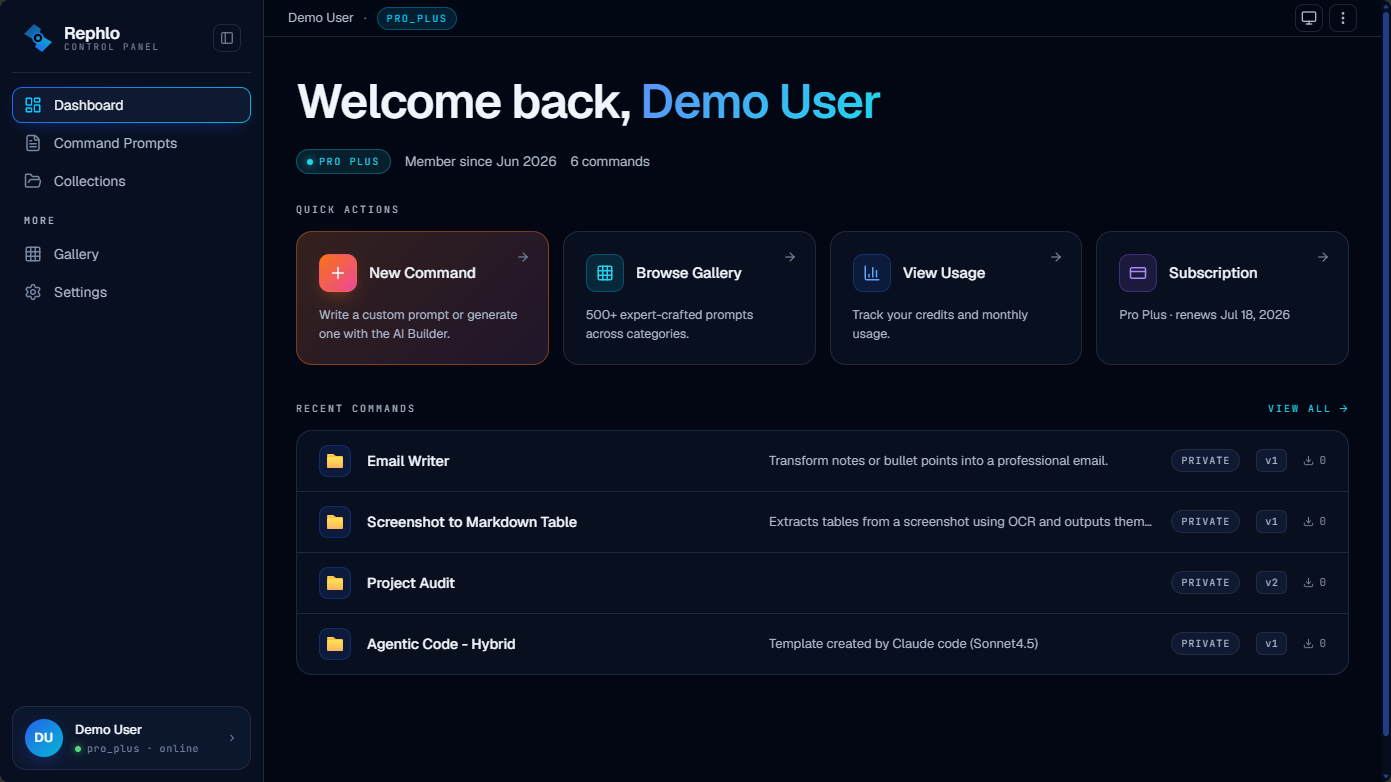
When you visit Rephlo on the web, your home page is the landing surface for the whole platform: it introduces what Rephlo does, previews popular commands, and — once you're signed in — gives you quick access to your account, your commands, and the gallery.
What the home page shows
The Rephlo home page is the same friendly landing page whether or not you're signed in. It walks you through the product and lets you jump straight into the parts you use most:
- Hero banner — a short overview of what Rephlo is, with quick calls to action.
- At-a-glance stats — for example, 500+ prompt templates and 8 supported bring-your-own-key AI providers, plus the option to run fully offline with on-device models.
- Featured commands — a grid previewing some of the most-used commands. From here you can browse the full Command Gallery.
- Provider showcase — the AI providers Rephlo works with (OpenAI, Anthropic Claude, Google Gemini, Groq, xAI Grok, OpenRouter, Ollama, and OpenAI-compatible endpoints).
- Pillars overview — short sections covering the core capabilities: Smart Select (in-app text actions), Multi-Turn Chat, Knowledge Spaces, Visual Intelligence, and the Prompt Library.
Signed in vs. signed out
The home page looks the same either way, but signed-in users can interact with gated features:
| Action | Signed out | Signed in |
|---|---|---|
| Browse the gallery | Yes | Yes |
| Install / use commands | Prompted to sign in | Yes |
| Open your command library | No | Yes |
| Manage account & billing | No | Yes |
If you're signed out, the primary call to action points you to Download Rephlo and to sign in or create an account.
A note on "dashboard"
Rephlo's web home is a welcome and launch surface, not a data-heavy admin console. Day-to-day work happens in the desktop app — running Smart Select text actions, chatting with AI via Multi-Turn Chat, querying documents in Knowledge Spaces, and capturing screen regions with Visual Intelligence. The web platform is where you manage your library, account, billing, and team. Deep organization administration (member management, roles, seat billing) lives in a separate workspace-admin area; see Teams & Organizations.
Getting around once you're signed in
Your account menu in the top-right corner (showing your email or initials) is the gateway to everything personal:
Common destinations:
- Your Profile — name, role, subscription, and organization at a glance.
- Account Settings — theme, notifications, username, password, and data controls.
- My Commands — the commands you've created or saved.
- Command Gallery — discover and install community and official commands.
- Plans & Pricing and Credits & Usage — manage your subscription and track usage.
Switching workspaces
If you belong to more than one organization, a workspace switcher appears in the sidebar showing your active workspace. Click it to move between your personal workspace and any team or enterprise workspaces you're a member of. The switcher only appears when you have two or more memberships. See Switching Workspaces for details.