Connecting Notion
Connect a Notion workspace to Rephlo so the AI can search and modify pages and databases as part of a chat. The Notion connector is available on Starter, Pro, Pro+, Elite, and Enterprise plans, and during a Trial. See Plans and pricing for what's included on each plan.
Notion is connected in the desktop app under Settings → Connectors. For background on how connectors work, see the Connectors overview.
What you can do
When Notion is connected and selected in the composer's Connectors menu, the model can call these tools on your behalf:
- Search pages and databases by query, tag, or date.
- Read the contents of a page, including blocks and database rows.
- Create new pages or database rows.
- Update existing pages — append blocks, edit properties, or change a status.
Each tool call appears as a small breadcrumb card in the chat showing the tool name, status, and how long it took — so you can see exactly what the AI did without scrolling through raw output.
How to connect
- In the desktop app, open Settings → Connectors.
- Find the Notion card and click Connect.
- Your default browser opens to Notion's authorization page. Sign in if needed.
- Pick the Notion workspace and the pages you want Rephlo to access. You can grant access to specific pages and databases — Notion does not require workspace-wide access.
- Approve. The browser hands control back to Rephlo, and the card switches to a Connected badge.
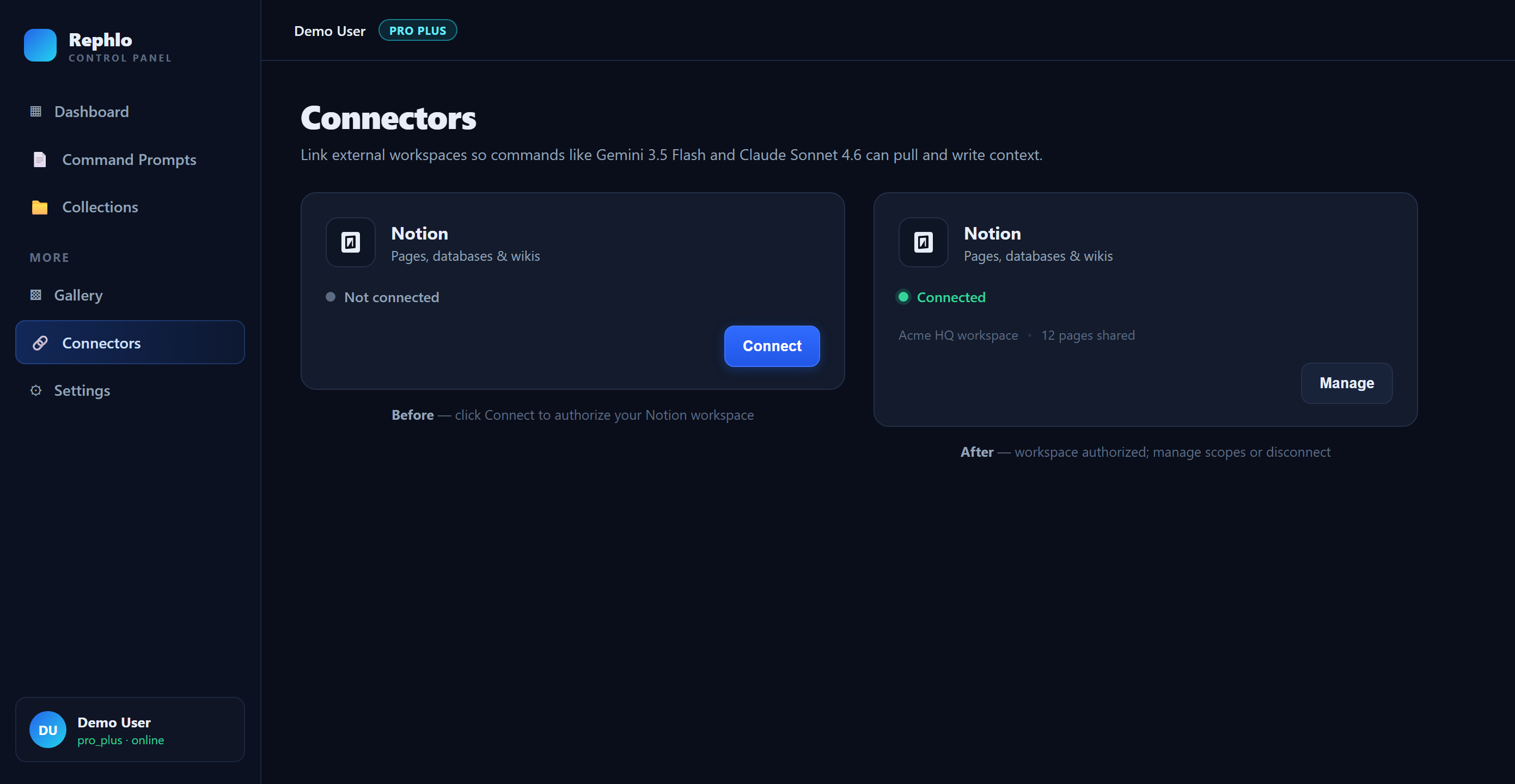
The Notion connector card in Settings, before and after connecting.
The whole flow uses OAuth 2.1 with PKCE and Dynamic Client Registration. There are no shared credentials and no API keys to copy around — your access is scoped to your account and revocable at any time from Notion's own integration settings.
Permissions Rephlo asks for
| Permission | What it lets the AI do |
|---|---|
| Read content | Read pages and databases you explicitly shared with the connector. |
| Update content | Edit pages and database rows you shared. |
| Insert content | Add new pages and rows in the workspaces you shared. |
Rephlo never gets access to pages you didn't share with the connector during the authorization step. You can re-run the flow at any time to widen or narrow what's shared.
Where your data lives
- Authorization tokens are stored encrypted on your device, in Rephlo's application data folder. They never leave your machine — Rephlo's backend does not see them.
- Tool results (for example, a page returned by a search) live in memory only while the chat session is active. The full result is not saved to disk; only a short text summary appears in the chat breadcrumb.
- An audit log on your device records every connect, disconnect, refresh, and tool call — the connector name, tool name, duration, and status only. Tool arguments and result content are never logged.
Using Notion in a chat
Make sure Notion is selected in the composer's Connectors menu. Then just ask naturally — for example, "Find my Q3 planning page in Notion and summarize the open tasks." The AI will call the search and read tools, and you'll see the breadcrumbs as it works.
Disconnecting
Click Disconnect on the Notion card to:
- Cancel any in-flight Notion tool calls.
- Shut down the connection to Notion.
- Best-effort revoke the access and refresh tokens with Notion.
- Clear the cached tool list and the connection from your local database.
Historical chat breadcrumbs from past Notion tool calls are kept — they're a record of what happened, not active credentials.
If you also want to revoke Rephlo's access from Notion's side (recommended for full cleanup), open Notion → Settings & Members → Integrations and remove Rephlo.
Troubleshooting
"Authorization failed — please try again." Usually a stale browser session or an interrupted sign-in. Click Connect again from the Notion card.
Connection shows "Needs re-auth." Your access expired or was revoked on Notion's side. Open the card's detail panel and re-authorize.
"Some tools are unavailable because they need additional permissions." You granted fewer permissions than Rephlo requested. Click Reconnect and accept the full set to make every tool available again.
A tool call errors with a protocol error. Almost always a brief Notion outage. Retry in a few minutes — the chat continues, and only the failed call is affected.
A tool call times out. Long-running operations (large searches, big page reads) can hit the 60-second per-call limit. Try a narrower query, or split the work into smaller requests.
What's next
More connectors are being added regularly — see the Connectors overview for the full, up-to-date list of what's connected today and what's coming soon. You can also add a server you operate yourself today; see Custom MCP servers.