On-Device Models
Rephlo can run AI models directly on your computer — no internet connection, no per-message credits, and your text never leaves your device. The On-Device Models screen lets you browse a curated catalog of local models, download the ones you want, and control how they use your machine's memory.
This screen lives inside the LLM Providers area of Settings. On-device inference uses the GGUF model format and runs through Rephlo's built-in local engine.
No built-in web search. Because on-device models run entirely offline, they can't search or fetch live information on their own. A web-search connector (MCP) is in development that will let on-device models retrieve up-to-date data once it's available. For web search today, use a cloud provider that supports it (see Chat & Conversations).
Reading attachments. Since v1.4.1, on-device models can read attached PDFs, text files, and Office documents in chat — the text is extracted locally and included in the prompt. Scanned documents are recognized on your device first, so they work here too.
Images. On-device models can't see images. When you attach one, Rephlo reads any text out of it on your device and passes that along instead, so the image is no longer silently ignored — but recognized text isn't visual understanding. For charts, diagrams, and photos, use a vision-capable cloud model.
How much can a local model actually do? If you're weighing an on-device model against a cloud one — or you're surprised by an answer it gave — read On-Device vs Cloud Models. It covers the real capability gap, and how to combine local redaction with a large cloud model.
Who can use on-device models?
On-device models require Pro, Enterprise, or a perpetual license — the Free and Starter plans don't include them.
If your plan doesn't include them, an upgrade banner appears above the catalog: "On-device models require Pro, Enterprise, or a perpetual license." The catalog stays visible — downloading and activating models is disabled, but you can still delete already-downloaded models to free up disk space. The banner shows a single button:
| Your situation | Button |
|---|---|
| You're eligible for the free trial | Start free trial or view plans |
| You've already used your trial (or aren't eligible) | View plans |
Selecting it opens the upgrade prompt, where you can start your trial or compare plans. The moment your plan unlocks the feature, the banner clears and downloading becomes available — no restart needed.
See License & Trial to start a trial, or compare options on the pricing page.
Check my machine (pre-flight check)
Before downloading anything, use the pre-flight hardware check to see what your computer can comfortably run. Rephlo reads your hardware and shows a short summary like:
16 GB RAM · 8 cores · Apple Silicon (unified memory)
It then ranks the catalog and highlights the single best fit, naming it right on the download button (for example, Download Phi-4 Mini 3.8B). One click downloads that recommended model.
The check is advisory, not a gate:
- If the recommended model fits, you'll get a clean recommendation.
- If a model needs more memory than you have, Rephlo shows a soft warning ("This model may be slow or may not load") and lets you Download anyway — it never hard-blocks you.
- If the hardware probe fails for any reason, you can still browse and download models manually below.
Downloading and managing models
Each model in the catalog shows its download size, a short description, and speed and accuracy ratings (shown as a row of dots, higher is better). From a model row you can:
- Download — fetches the model file with a live progress bar. If a download fails, the row shows the error so you can retry.
- Use (Activate) — marks a downloaded model as the active on-device model for chat and commands. Activating one model deactivates the others; the active model is shown at the top of the screen.
- Delete — removes the model file to free disk space. (You can delete even on a plan that has since locked the feature, so you can always reclaim storage.)
Model lifecycle
Storage
Downloaded models are stored in your app data folder, by platform:
| Platform | Location |
|---|---|
| macOS | ~/Library/Application Support/Rephlo/models/llm |
| Windows | %LOCALAPPDATA%\Rephlo\models\llm |
The screen shows your total disk usage across all downloaded models, and each row shows that model's individual size. Model files are large (often several gigabytes each), so keep an eye on free space — make sure you have room before downloading.
Memory: keeping models loaded or unloading them
Loading a model into memory takes a moment and uses RAM while it's active. You choose how Rephlo manages this with a memory strategy:
| Strategy | What it does | Best for |
|---|---|---|
| Always Loaded | Keeps the active model in memory at all times for instant responses. | Powerful machines where you use on-device AI constantly. |
| Auto Unload (Recommended) | Keeps the model loaded while you're using it, then automatically frees the memory after an idle period (default 10 minutes). | Most people — fast when active, light on resources when idle. |
| Manual | Loads on demand and only unloads when you choose. | Advanced users who want full control. |
With Auto Unload, you can adjust the idle timeout (in minutes). After that much time without use, the model unloads on its own to give your memory back to other apps. The next request reloads it automatically.
The same Model Memory card also has a Context Window control — the maximum number of tokens the on-device model can consider per request. It defaults to 32,768 tokens (~32K) and can be set anywhere from 2,048 to 262,144. There's no Auto option here — unlike the Context Length field for BYOK/cloud and Ollama-style provider models, on-device models always use this explicit setting. Raising the Context Window uses more RAM/VRAM and reloads the active model.
Getting an out-of-context error? If a request doesn't fit in memory, Rephlo shows an actionable error (sometimes referencing
NoKvSlot). Raise the Context Window above to fix it.
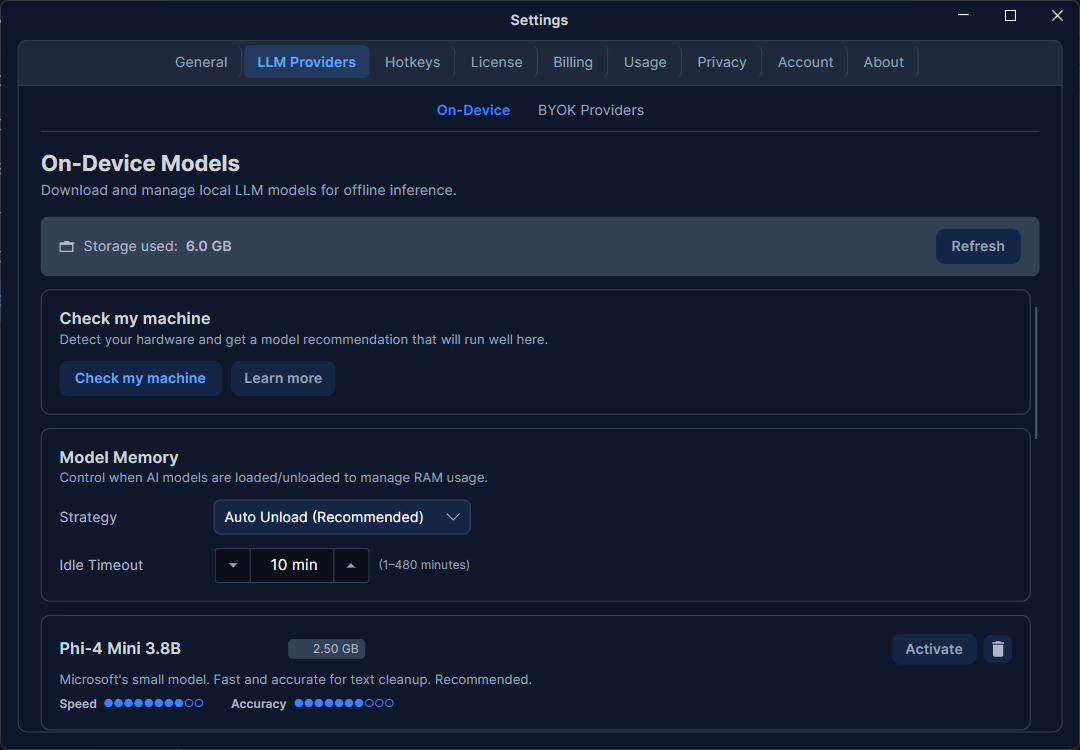
The On-Device Models screen: pre-flight "Check my machine" panel at the top, a memory-strategy selector, total storage usage, and the scrollable model catalog with per-row download/use/delete actions.
Related pages
- On-Device vs Cloud Models — the capability gap, and combining local redaction with a cloud model
- Models & Inference — how Rephlo picks between cloud and on-device models
- LLM Providers — configure cloud providers and API keys
- License & Trial — start a trial to unlock on-device models
- Privacy & Data — why local models keep your text on-device