License & Trial
The License & Trial screen shows what your current plan unlocks, lets you start a free trial, activate a perpetual license, and see how close you are to your plan's limits. Most of it is read-only status — the actions that cost money (subscriptions, buying a license) happen on the web — but you can start a trial and enter a perpetual license key right here.
At a glance
The top of the screen always shows your current plan name and a short status message (for example, Free Plan, Pro Plus Trial, Active Subscription, or Perpetual License). A Refresh button re-checks your license with Rephlo's servers if you've just changed your plan on the web.
Free 14-day Pro Plus trial
If you're eligible, you can start a 14-day Pro Plus trial — full Pro Plus features, no payment required.
You can also start this trial from the first-launch Welcome Screen — click Start Pro Trial to activate instantly. No sign-in is required, and it works fully offline.
- Eligible — You'll see a Start Free Trial button and the text "14-day free trial available." Selecting it shows a confirmation, then activates your trial instantly.
- Active — A progress bar fills smoothly as the trial elapses, and a label counts down the days remaining (for example, 12 days remaining). A status bar Trial: chip mirrors this same countdown; it hides automatically once you sign in with an active Pro subscription, and returns on sign-out if a valid trial remains.
- Not eligible — If this device has already used its trial (or you already have a subscription), the trial section is hidden and you'll see a View Plans option instead.
Eligibility is checked per device, so a device can use the free trial once. To compare paid options, see Plans & pricing or the pricing page.
Perpetual license
A perpetual license is a one-time purchase that unlocks Rephlo for life. If you have one, this screen shows:
- The license key, masked for privacy (only the last few characters are visible)
- Upgrade support status — Active (you receive feature updates) or Expired (your version keeps working, but new-version upgrades are no longer included)
To buy a perpetual license, see Perpetual license.
Activating a license key
An Activate license section lets you enter a perpetual license key you've purchased. It's collapsed by default for subscription users and expanded automatically for Free users.
- The Activate button stays disabled until you've typed a key.
- If activation can't reach the server, the license activates offline and syncs automatically the next time you're online. While pending, the screen shows a countdown of how many days you have to connect and verify.
- If a key is invalid, an error message explains why.
Offline grace
Rephlo works offline. For subscription plans, your access continues for a 72-hour offline grace period based on the last successful server check. If you stay offline past that window, the app temporarily reverts to limited (Free-level) access until you reconnect and re-verify. Perpetual licenses and active trials are exempt — they keep working offline.
Tier limits
A limits panel shows how much of your plan you're using across four areas:
| Resource | What it tracks |
|---|---|
| Commands | Your custom commands vs. your plan's limit |
| Spaces | Spaces created vs. limit |
| Provider configs | Configured LLM providers vs. limit |
| History | Saved history items vs. limit |
Each shows count / limit (for example, 18 / 25 commands). A limit of Unlimited means there's no cap on your plan. If you exceed a limit (for instance, after downgrading), that row is flagged as over limit so you know what to trim or which plan to consider.
Admin-granted access
If a Rephlo administrator has granted your account a plan (for example, for a partnership or support case), a badge shows the granted tier, its expiry date, and the reason. This behaves like a subscription for the granted period.
Your Device ID
Every screen shows a Device ID — a unique fingerprint for this machine, formatted as a readable string. A Copy button copies it (with a brief "copied" flash). Support may ask for it when helping with trial or license issues. The Device ID is generated locally and works offline.
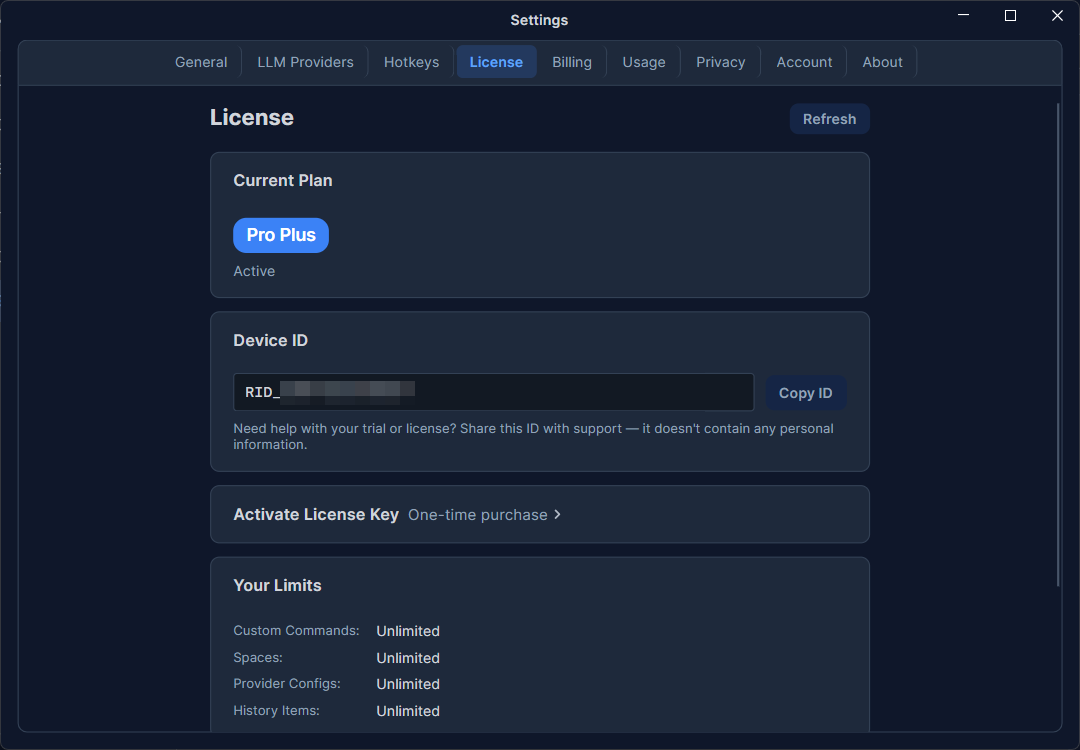 The License & Trial screen: current plan and status at the top, a trial section with progress bar (when active), a perpetual-license summary and expandable Activate section, the tier-limits panel, the Device ID block with a Copy button, and a Refresh button.
Related pages
- Free trial — how the trial works
- Perpetual license — one-time lifetime purchase
- Plans & pricing — compare plans
- Billing & Subscription — plan status and credits
- On-Device Models — a feature your trial or plan unlocks