Connectors
Connectors let Rephlo reach into the tools you already use — like Notion, Linear, Stripe, Airtable, and Todoist — so the AI can read and act on real data instead of only the text you paste in. Under the hood they use the Model Context Protocol (MCP), an open standard for connecting AI assistants to external tools.
Open the catalog from Settings → Connectors.
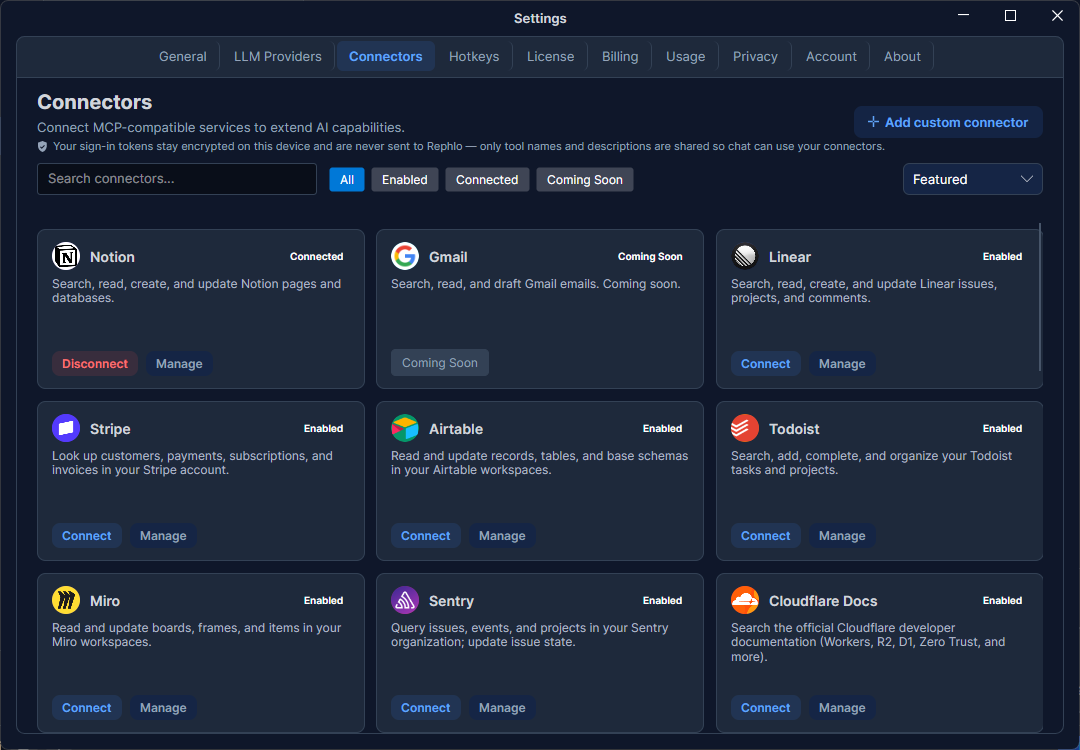
Heads up: connectors are on by default — this is no longer a staged rollout. The Connectors tab is always shown; what's locked or available depends on your plan tier, not your build. For a deeper walkthrough of how connectors and tools work in chat, see MCP Connectors & Tools.
Who can use connectors
Connectors are a paid feature, available on Starter and higher plans. If your plan doesn't include them, the tab shows a locked banner (heading "Upgrade to Starter+", with "Connectors are available on the Starter plan and above. Upgrade to connect MCP services.") in place of the connector catalog. A few individual connectors (for example Linear, Stripe, Miro, Sentry, Supabase, and Exa) require the Pro plan even once you're past that Starter+ gate. Compare plans on the Plans & Pricing page.
The catalog
Each connector appears as a card showing its name, icon, a short description, and a status. Status reflects two different things:
| Status | Meaning |
|---|---|
| Enabled | The connector is shipping and ready for you to connect. |
| Coming Soon | Listed for visibility but not yet available to connect. |
| Connected | You have actively connected an account to this connector. |
"Enabled" describes what Rephlo offers; "Connected" describes what you have set up. A connector can be Enabled (available) but not yet Connected (you haven't linked your account).
Finding a connector
The toolbar at the top of the catalog helps you narrow things down:
- Search — type to filter by name (the search is debounced, so it waits a moment after you stop typing). It ignores accents, so "cafe" matches "Café".
- Filter chips — All, Enabled, Connected, and Coming Soon. Selecting a specific chip turns off "All"; clearing them all returns to "All".
- Sort — Featured (default), Alphabetical, or Recently used.
The card grid updates in real time as you change the search, filters, or sort.
Connecting a connector
- Find the connector you want and click Connect (or Manage on an existing one).
- A side panel slides in with the connector's details.
- Complete the connector's authentication — depending on the connector this may be an OAuth sign-in, an API key, or a custom configuration.
- Once authorization succeeds, the card flips to Connected automatically — there's no separate test step to run.
The card's status updates to Connected immediately — you don't need to leave and re-open the tab.
Managing and disconnecting
Click Manage on a connected card to reopen the side panel, where you can:
- Review the connector's details and connection status.
- Re-authorize if your connection expires or needs refreshing.
- Disconnect to remove the link. Disconnecting only unlinks the account — it doesn't delete anything in the external service.
If a connection fails or its authorization expires, the card shows an error so you know to reconnect.
What leaves your device (and what never does)
Connecting a service means trusting Rephlo with access to it, so here is exactly how that access is handled:
- Your sign-in tokens never leave your device. When you connect a service, the access token it grants is stored encrypted in Rephlo's local database on your machine. It is not uploaded to Rephlo's servers, not included in exports, and it's deleted when you disconnect.
- You authorize the service directly. The sign-in happens in your own browser, on the service's own page (Notion, Linear, and so on) — Rephlo never sees your password, and the consent screen identifies Rephlo by name so you always know who you're authorizing.
- Only tool names and descriptions are shared with Rephlo. So that the AI can know which tools your connectors offer during a chat, Rephlo's service receives a small catalog of each connected service's tool names, one-line descriptions, and input formats. That's all — no tokens, no account details, no content from the service.
- Tool calls run on your device. When the AI uses a tool mid-conversation, your computer makes the request to the service directly, using the locally stored token. The result becomes part of that conversation only.
The one planned exception: a few services require an app secret that can't safely live on your device. For those (they'll be marked in the catalog), the sign-in handshake passes through Rephlo's service — but even then your tokens are handed straight back to your device and are never stored on Rephlo's servers.
Adding a custom connector
If you run your own MCP server, use Add custom connector to register it. You'll provide a server name, choose a transport (Streamable HTTP or Stdio), and then fill in either an executable path and arguments (for Stdio) or a server URL and bearer token (for HTTP). Once saved, it appears in the catalog alongside the built-in connectors.
Using connectors in chat
Connectors come alive in Chat & Conversations. Open the composer's + menu and use the Connectors submenu to choose which of your connected connectors are active for that conversation — you can select more than one. Once a connector is active, the AI can call its tools mid-conversation — for example, to look something up in Notion or create a task in Todoist.
Before the AI runs a tool that can write or change something, a consent dialog appears with Deny, Approve once, and Allow for session options, so nothing happens without your say-so. A connector's detail panel also notes how many of its tools need this approval (for example, "3 tools require approval in Chat").
Tool calling requires a model with function-calling capability; make sure your active provider supports it (see LLM Providers).