MCP Connectors & Tool Calling
Connectors let the AI in Chat reach beyond the conversation and actually do things in your other tools — search your Notion workspace, look up an email, find an issue, and so on. Under the hood this uses tool calling: the AI decides it needs information, calls a tool the connector provides, gets a result back, and weaves that into its answer.
This page explains how to turn connectors on for a chat, what tool calls look like as they happen, and how to read the results.
What is a connector?
A connector is a secure link between Rephlo and an external service (for example, Notion). Each connector exposes one or more tools — actions like "search" or "fetch a page" — that the AI can call on your behalf during a conversation.
You set connectors up once in Settings → Connectors, where you connect your account to the service. After that, they're available to switch on in any chat. To connect a service, see Connectors Settings and, on the web side, Connecting Notion.
Turning connectors on for a chat
Connectors are chosen per conversation — you decide which ones a given chat is allowed to use, and that choice is remembered for that conversation.
- Open the connector menu in the chat composer.
- Pick one or more connected connectors to enable for this chat.
- Send your message as usual — the AI can now call the enabled connectors' tools when it needs to.
Only connectors you've already connected appear in the list. If you connect a new service in Settings while a chat is open, reopen the menu to refresh it. There's also a shortcut to jump straight to Settings → Connectors from the menu's footer.
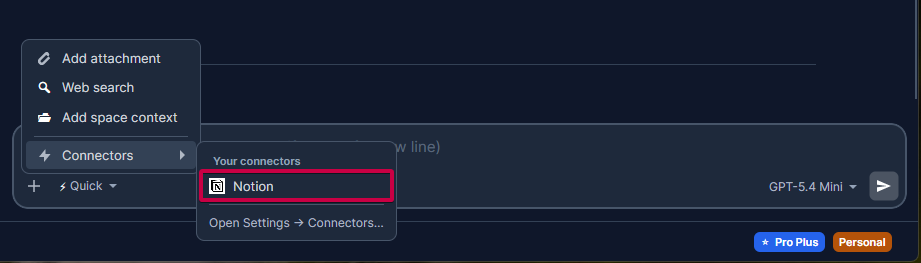
Open the + menu in the composer, hover Connectors, and enable one or more of your connected services for this conversation.
When connectors are available
A few conditions affect whether connectors can act:
- The model must support tool calling. Connectors only work with models that can call tools. If you switch to a model that can't, the connector controls become unavailable for that chat — switch back to a tool-capable model to use them again.
- At least one connector must be enabled for the conversation. With none selected, the chat behaves like a normal conversation.
- The connector must be healthy. If every enabled connector is currently unreachable (for example, a sign-in expired), Rephlo shows a banner so you know tools won't run until you reconnect.
Connectors are a subscription feature. If they're not available on your plan, Rephlo will let you know — see Plans & Pricing for details.
What a tool call looks like
When the AI uses a connector mid-conversation, you don't just get a final answer out of nowhere — Rephlo shows a compact tool-call card in the chat timeline so you can see what happened.
Each tool call records:
- Which connector and tool were used (for example, Notion → search).
- Status — success, error, timeout, cancelled, or a protocol error.
- How long it took (duration in milliseconds).
- A short, friendly summary of the result (for example, the titles of the pages found).
When the AI makes several calls to the same connector in a row, Rephlo groups them into a single card that shows totals (how many succeeded, how many failed, total time). You can expand the card to see each individual call, and — when a full result was saved — open it to view the complete payload.
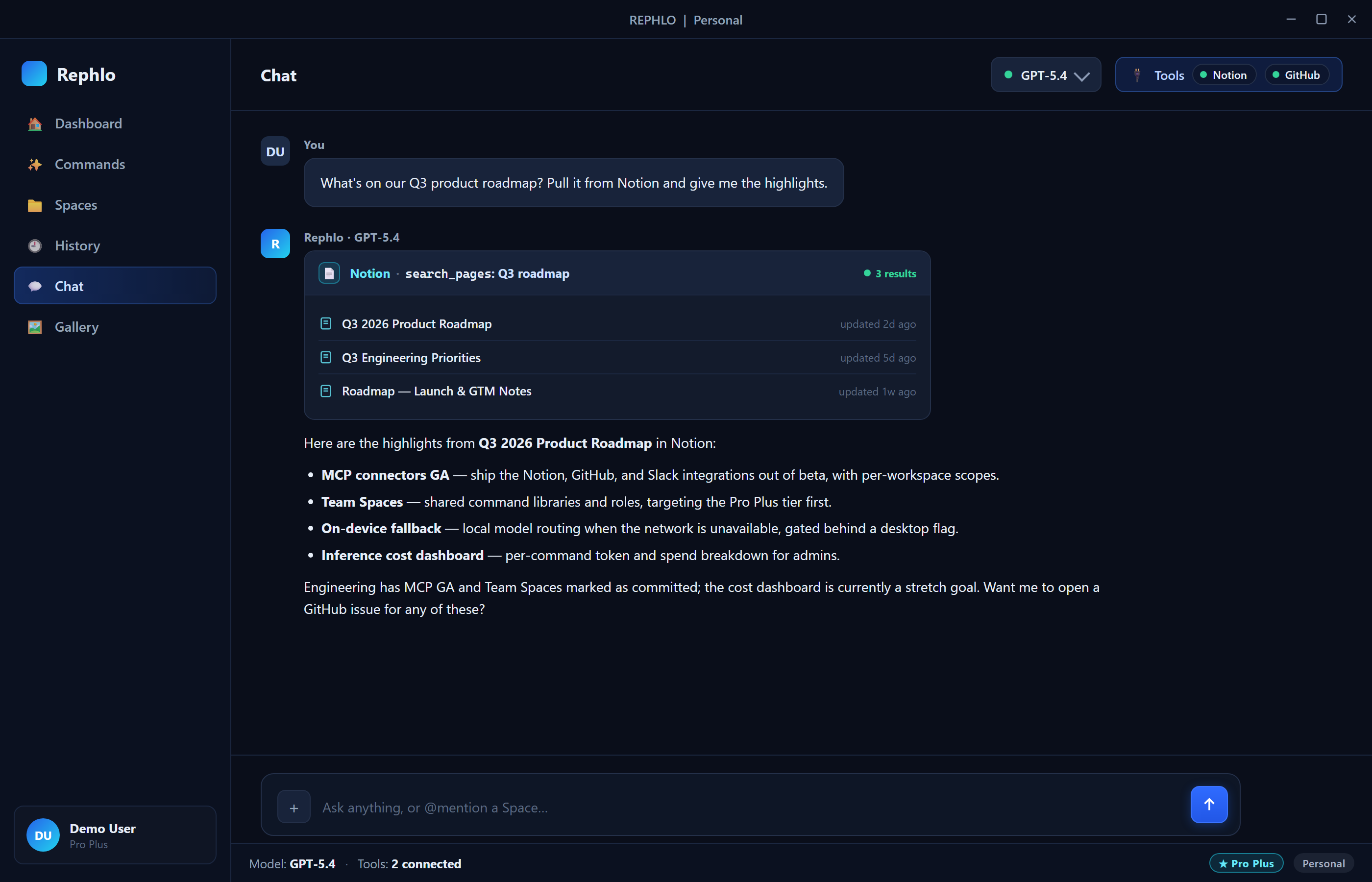
A tool-call card in the chat timeline: connector name and tool, a success/error indicator, the duration, and a one-line result summary, with an expandable list when multiple calls are grouped and a "View full result" option.
Approving a tool call
Some tools only read information (for example, a search) — those run automatically without interrupting you. But before the AI runs a tool that can write or change something in a connected service (for example, creating a page or updating a record), Rephlo shows a confirmation dialog first, with three choices:
- Approve once — allow just this call; you'll be asked again next time.
- Allow for session — allow this tool for the rest of the conversation without asking again.
- Deny — block the call; the AI won't run it.
This keeps you in control of anything that changes data outside the conversation, while read-only lookups stay fast and don't interrupt you.
Reading tool results
The card's summary is meant to be glanceable. For a search, it might read like "3 results: Project Plan, Roadmap, Notes + 1 more." For a single page fetch, it shows the page title. If a call failed, the card shows a short error message (for example, "object not found") instead of a result.
Because these cards are part of the conversation, they stay with the chat — when you reopen the conversation later, the tool calls are still there as a record of what the AI looked up.
Privacy and your data
Tool calls only run against the connectors you explicitly enable for a conversation, and only when the AI decides it needs them. You stay in control of which services a chat can touch. For a fuller picture of how Rephlo handles your data, see Privacy & Data.
Related pages
- Chat & Conversations — the chat experience connectors plug into.
- Connectors Settings — connect and manage your services.
- Connectors Overview — connectors on the web side.
- Connecting Notion — a step-by-step setup example.