Account
The Account screen in Settings shows who you're signed in as, your membership details, and — if you belong to more than one organization — lets you switch your active workspace. It's a read-only mirror of your web account: profile edits happen on the web platform, and the desktop app reflects them.
Signed in vs. BYOK mode
The screen looks different depending on how you're using Rephlo:
- Login mode — You've signed in with your Rephlo account. The screen shows your profile and account details.
- BYOK mode — You're running Rephlo with your own provider API keys and aren't signed in. The screen shows a "bring your own key" indicator and a Sign in button.
You can move between the two at any time using Sign in / Sign out.
Your profile (Login mode)
When signed in, the Account screen displays:
| Field | What it shows |
|---|---|
| The email address on your Rephlo account. | |
| Member since | The date your account was created (for example, March 4, 2026). |
A Copy email button copies your address to the clipboard with a quick "Copied" confirmation — handy when contacting support.
To change your name, password, or other profile details, use the Manage profile button. It opens your account settings on the web, where all profile editing actually happens.
Workspaces and organizations
If your Rephlo account belongs to two or more organizations, the Account screen shows an active workspace section with:
- The name and type of your currently active organization
- A Switch workspace button
Selecting Switch workspace lets you pick a different organization to work in. Rephlo re-signs you in for the chosen workspace and refreshes everything tied to it — your provider access, credits, and license all update to match the new organization.
If you belong to only one organization, this section is hidden — there's nothing to switch to, so the app keeps the screen clean.
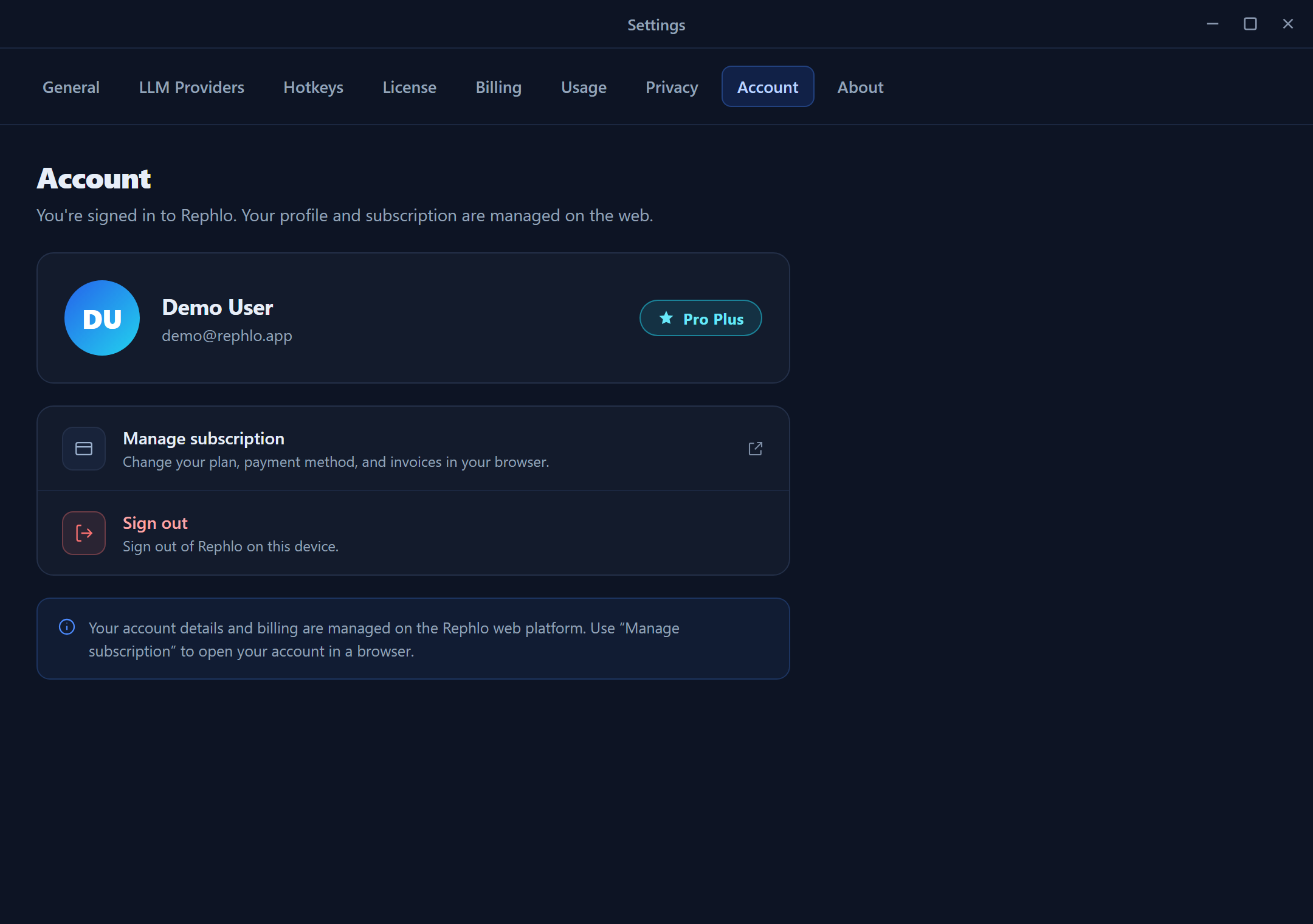
The Account screen in Login mode: email and "member since" at the top with a Copy button, a Manage profile button, and — for multi-organization accounts — the active workspace card with a Switch workspace button.
What you can and can't do here
| Action | Where it happens |
|---|---|
| View email and member-since date | Here (read-only) |
| Copy your email | Here |
| Sign in / Sign out | Here |
| Switch active workspace (multi-org) | Here |
| Edit profile, name, password | Web account settings (via Manage profile) |
| Change plan or payment | Billing & Subscription → web |
Related pages
- Signing in & authentication — how desktop and web accounts connect
- Billing & Subscription — your plan and credits
- License & Trial — license status and trials
- Desktop and web together — how the two surfaces work as one