Billing & Subscription
The Billing & Subscription screen gives you a clear, at-a-glance view of your current plan and credit balance — right inside the desktop app. It's read-only: there are no payment fields here. All paid actions (upgrading, changing payment methods, cancelling) happen on the web, and a Manage subscription button takes you straight there.
What the screen shows
When you're signed in, the screen displays your subscription summary:
| Field | What it shows |
|---|---|
| Current tier | Your plan — for example Free, Pro, Pro+, Team, or Enterprise. |
| Status | Active, Paused, or Canceled. |
| Billing cycle | Monthly or annual. |
| Current period | The start and end dates of your billing period. |
| Auto-renew | Enabled or Disabled (Disabled means your plan won't renew at period end). |
To change any of these, select Manage subscription — it opens your subscription page on the web.
Credits
Most plans include monthly credits that power AI requests through Rephlo's hosted models. The screen shows a credits gauge with a summary line, such as how many credits remain, how many you've used, and when they reset.
For a full explanation of how credits are consumed, see Credits & usage.
What you see depends on your plan
The credits area adapts to your situation:
- Personal plans (Free, Pro, Pro+, Elite) show your own credits gauge with remaining, used, and reset date.
- BYOK-only plans (Team BYOK, Enterprise BYOK) don't use platform credits at all — your organization uses its own provider keys — so the credits row is replaced with a short explanation instead.
- Team / Enterprise with organization keys show your credits gauge plus a hint noting that calls made through the organization's own provider keys don't deduct credits.
- Team / Enterprise members see a "Covered by your organization" banner explaining that billing is managed by your org admin, and that the organization's pool covers usage beyond your personal allocation.
Organization credit pool (owners only)
If you're an organization owner or admin on a seat-based plan, you'll also see an organization pool gauge. It shows the shared pool's status — how much remains out of the total, the percentage used, and a reset date — along with a per-seat breakdown. When the pool runs out, the gauge flags it as exhausted.
Regular members never see exact pool numbers — only the generic "Covered by your organization" banner. Pool details are reserved for owners and admins.
The credits display refreshes on its own after activity (for example, after a chat completion lands), so the balance stays current without reopening the screen.
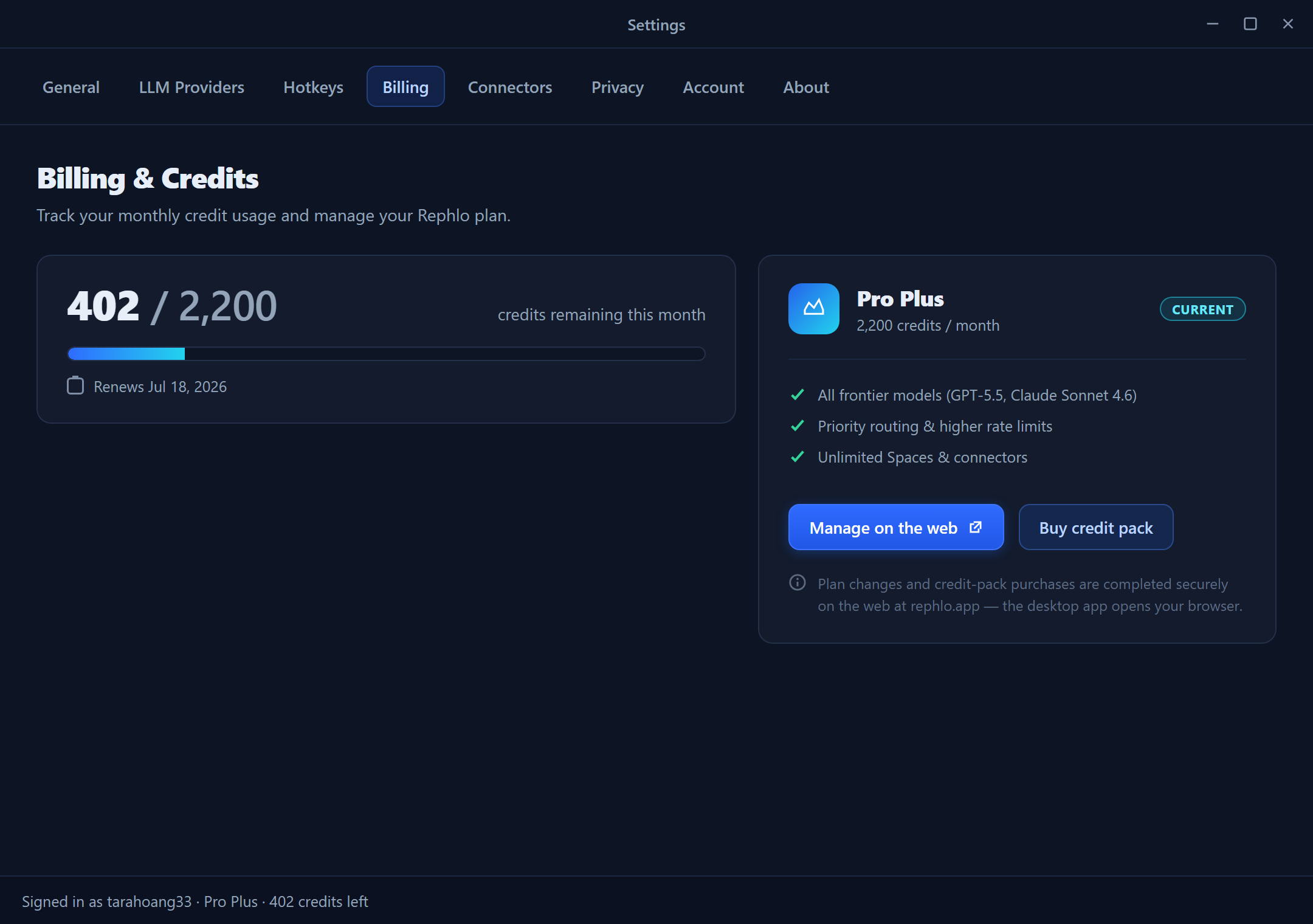
The Billing & Subscription screen: plan tier, status, billing cycle, current period, and auto-renew at the top; a credits gauge with summary line; an optional organization-pool gauge for owners; and a Manage subscription button that opens the web.
Where to make changes
Everything that costs money happens on the web. Use these pages:
| To do this | Go to |
|---|---|
| Compare plans and pricing | Plans & pricing · pricing page |
| Upgrade, downgrade, or cancel | Subscriptions |
| Understand how credits are spent | Credits & usage |
| Buy a one-time perpetual license | Perpetual license |
| Start your free trial | Free trial |
Related pages
- Account — your profile and workspace
- License & Trial — license status, trial, and tier limits
- Credits & usage — how credits work