Advanced Configuration
For power users, Rephlo exposes finer control over performance, AI behavior, and prompt caching. Unlike the basics, these settings are spread across a few places — some are per-Space, some are per-provider or per-command, and some are app-wide. This page maps out where each one lives and what it does.
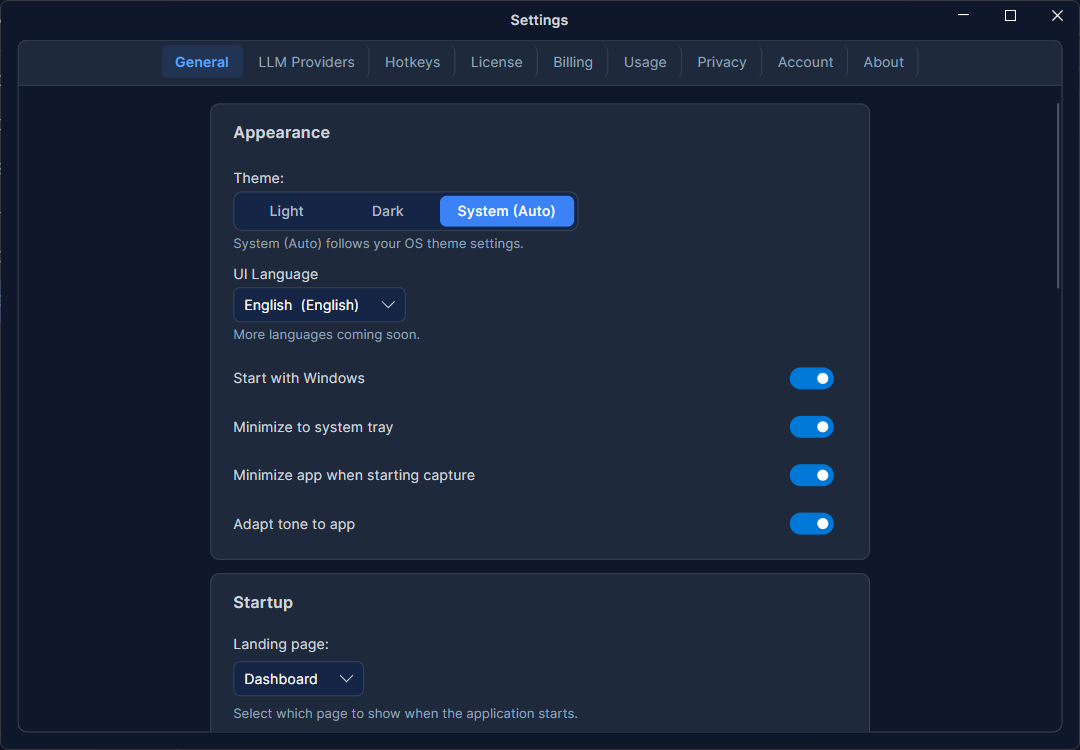
Token Budgets
The Default Space Token Budget lives in Settings → General → Performance. It sets the starting token limit for each new Space — how much document content the Space can hold before data modes and compaction become relevant.
- Slider range: 5,000 to 1,000,000 tokens (the input box allows down to 1,000).
- Default: 100,000 tokens.
- Applies to new Spaces only. Each Space can be re-budgeted individually afterward, and changing this default never rewrites existing Spaces.
A separate chat browse-window size in the same section controls how many recent conversations load into the chat sidebar at once (10–5,000; older chats remain reachable through search). It is a performance tuning knob, not a data limit.
Compaction Strategy
Compaction keeps a Space token-light by summarizing its documents. It applies when a Space is set to 🗜️ Compact data mode (chosen with the per-Space data-mode selector — there is no separate global toggle):
- Switching a Space to Compact offers to summarize its current files, and newly added files can be compacted from the Space view. Building summaries uses credits, so Rephlo always asks you to confirm the credit cost first — compaction is never silent.
- Credit guard: for a large Space (raw total ≈ 128,000 tokens or more), Compact is disabled and compaction is blocked, steering you to free Smart Search. Compacting a single large file (≈ 50,000 tokens or more) prompts an extra confirmation.
- When you compact, Rephlo asks you to pick a strategy and which model should do the summarizing. The model choice is remembered for the rest of your session.
The three strategies trade fidelity against token savings:
| Strategy | What it does | Best for |
|---|---|---|
| Conservative | Keeps the most detail; smallest token reduction. | When accuracy matters more than saving tokens. |
| Balanced | Summarizes older documents — the recommended middle ground (default). | Most projects. |
| Aggressive | Keeps only the most recent key points; maximum savings, more detail loss. | Fitting very long material into a small context window. |
Whichever mode a Space uses, Rephlo tracks both a raw token total and a compact token total per Space, so you can see the effect of compaction. For the full picture of Smart Search vs. Compact data and how compaction interacts with on-device retrieval (RAG), see Data Modes & Compaction.
Provider & Model Tuning
Temperature, maximum response length, and context window are per-provider and per-model settings (with optional per-command overrides) — they are not a single global control. Configure them in the LLM Providers tab; see Providers and Managing Providers.
Temperature
Controls how deterministic vs. creative responses are. Default is 0.7 (balanced).
- 0.0 – 0.3 — precise and repeatable. Good for code and facts.
- ~0.7 — balanced. Good for general writing.
- 1.0+ — more creative and varied. Good for brainstorming.
Max Response Tokens
Caps the length of the AI's reply so it doesn't write an essay when you wanted a sentence. A value around 2,000 is a typical default.
Context Window Limit
For BYOK/cloud and Ollama-style provider models, this is the Context Length field in the Add/Edit Model dialog. It caps how much text is sent to the model. Leave it on Auto to use the provider's default, or set a manual limit to control cost on paid APIs.
On-device models don't use this field — the curated on-device catalog ignores it. Instead, their context window is a dedicated Context Window setting (Settings → LLM Providers → On-Device, in the Model Memory card): a range of 2,048–262,144 tokens, default ~32,768. Raising it uses more RAM/VRAM and reloads the active model.
Per-Command Overrides
Individual commands can override the global provider, model, temperature, and max tokens. A command's own settings take precedence over the global provider defaults when it runs. See Execution Workflows.
Prompt Caching
Rephlo can reuse a cached prefix of your prompt to cut cost and latency on supported providers. Caching settings live with provider configuration:
- Enable prompt caching — turns caching on for supported requests (on by default).
- Cache TTL — how long a cache entry lives:
- Ephemeral — about 5 minutes.
- Extended — about 1 hour.
- Cache logging — records detailed cache-performance information.
Cache reads are heavily discounted, and the History detail view shows cache-creation and cache-read tokens per request so you can see the savings. Caching only kicks in when the request has a cacheable prefix (for example, a chat with a Space attached). For the full behavior, see Prompt Caching.
Developer Tools
These are aids for troubleshooting, not everyday settings:
- Debug Mode — enables verbose logging to the app's log file. Useful when diagnosing provider connection problems.
- Prompt Inspection — surfaces the exact JSON payload sent to the provider, viewable in the History details.
Environment switching (Production / Staging / Local API endpoints) is available only in debug builds and is not part of the regular user experience.
Related: Data Modes & Compaction · Providers · Prompt Caching · History & Audit