Data Modes & Compaction
When you attach a Space (your knowledge base of documents) to a command or chat, all that text feeds the AI. You decide how it feeds the AI with a single choice — the Data mode selector at the top of a Space's data view. There are two options:
- 🔍 Smart Search — raw content, retrieved on demand. Free (no credits).
- 🗜️ Compact — pre-summarized content, always sent. Uses credits to build the summaries.
This page explains both, the credit safeguards around compaction, and how the app proactively keeps your Space on the cheaper mode.
One choice: the Data mode selector
Each Space has one Data mode, set with two mutually-exclusive options (think radio buttons, not separate switches). An ⓘ info icon sits next to the selector, and a live helper line beneath it explains what your current choice does for this Space's size.
| Data mode | What it sends | Credits | Best for |
|---|---|---|---|
| 🔍 Smart Search (default) | Your raw content — the full text for a small Space, or only the most relevant parts once the Space grows | Free | Any size of Space — the safe default |
| 🗜️ Compact | Only the most relevant retrieved passages once the Space grows, or the full set of AI summaries for a small Space | Uses credits to build the summaries (reused afterward) | Small Spaces you query broadly and want to keep token-light |
🔍 Smart Search (default, free)
Smart Search sends your raw content, and it adapts to the size of the Space automatically:
- Small Space — Rephlo sends everything (a full scan), because retrieval isn't worth it for a handful of documents.
- Large Space — Rephlo retrieves only the most relevant parts for your request (Retrieval-Augmented Generation, or RAG — see RAG & Retrieval) instead of sending the whole thing.
Either way, Smart Search never spends credits, and retrieval runs on your device — your documents never leave your machine. The helper line under the selector tells you which behavior is active right now:
"Sending all content — this Space is small enough to scan in full." — or — "Retrieving the most relevant parts (Space is large)."
Where the size cutoff lives
The dividing line between "scan everything" and "retrieve only the relevant parts" is configurable. Open Settings ▸ General ▸ RAG Retrieval Tuning, turn on Advanced, and adjust Minimum Space size (tokens) (default 4,000). Raise it to keep scanning everything for larger Spaces; lower it to start retrieving sooner. See RAG Retrieval & Tuning for the full set of knobs.
Because Smart Search retrieves only what's relevant for large Spaces, it is usually cheaper than sending a whole compacted Space — and it costs no credits. It's the right default for almost everyone.
🗜️ Compact (uses credits)
Compact stores an AI-generated summary of each file and sends those summaries instead of the full text, so each request carries fewer tokens. Building those summaries costs credits — but once a file is compacted, its summary is reused, so you only pay to build it (or to rebuild it on demand).
Compact also benefits from retrieval: once a Space grows past the retrieval floor, a normal request retrieves only the relevant passages from your Space's raw content (Retrieval-Augmented Generation, or RAG — see RAG & Retrieval) — just like Smart Search. The full set of AI summaries goes out only as a fallback — when the Space is small enough to send whole, or when nothing confidently matches your request.
You build summaries with explicit actions in the Space's data view:
- Compact — summarize a single file.
- Compact All — summarize every uncompacted file in the Space.
- Regenerate — rebuild a file's existing summary.
Every compaction action asks you to confirm the credit cost first. Nothing is summarized — and no credits are spent — until you say yes.
Compaction credit guard (large Spaces)
To stop a single click from burning a large slice of your credits, Rephlo locks compaction for large Spaces. When a Space's total raw content reaches about 128,000 tokens, the Compact option is disabled (greyed out) and every compaction action — Compact, Compact All, and Regenerate — is blocked. A short note steers you to Smart Search, which already handles large Spaces efficiently and for free.
Large single-file warning
Even below the lock, compacting one big file can cost meaningfully. If a single file is about 50,000 tokens or larger, Rephlo shows a credit-cost confirmation before compacting it, so a large document never gets summarized by surprise.
Smart Mode Advisor
When a Space is in Compact mode, Rephlo watches for situations where Smart Search would serve you better — for free — and offers to switch. It evaluates when you open a Space and after each change to its data, and it will suggest switching when the Space:
- Becomes large (about 128,000 tokens or more) — compaction is locked anyway, so Smart Search is the efficient choice.
- Just received a big file (about 50,000 tokens or more) — compacting it would cost real credits.
- Is tiny (at or below your Minimum Space size) — Smart Search can scan all of it for free, so there's no reason to spend credits.
The advisor only ever suggests switching to Smart Search — it never compacts anything on its own and never changes your mode silently. If you decline, your Space stays on Compact, and the advisor won't nag you again for the same situation.
Token budget per Space
Every Space has a token budget — the maximum combined size of its documents (default 100,000 tokens, adjustable). Rephlo tracks two running totals so you can see the effect of compaction at a glance:
- Raw token count — the total if every document is used in full (this is what the credit guard measures against ~128,000).
- Compact token count — the total once summarized versions are used instead.
When to use what
- Almost everything — Stay on Smart Search. It's free, it scans small Spaces in full, and it retrieves only what's relevant for large ones.
- Large Spaces — Smart Search. Compaction is locked here anyway, and retrieval is both cheaper and free.
- A small Space you query very broadly (you want the whole thing summarized into a few tokens every time) — Compact can help, and you'll confirm the credit cost up front.
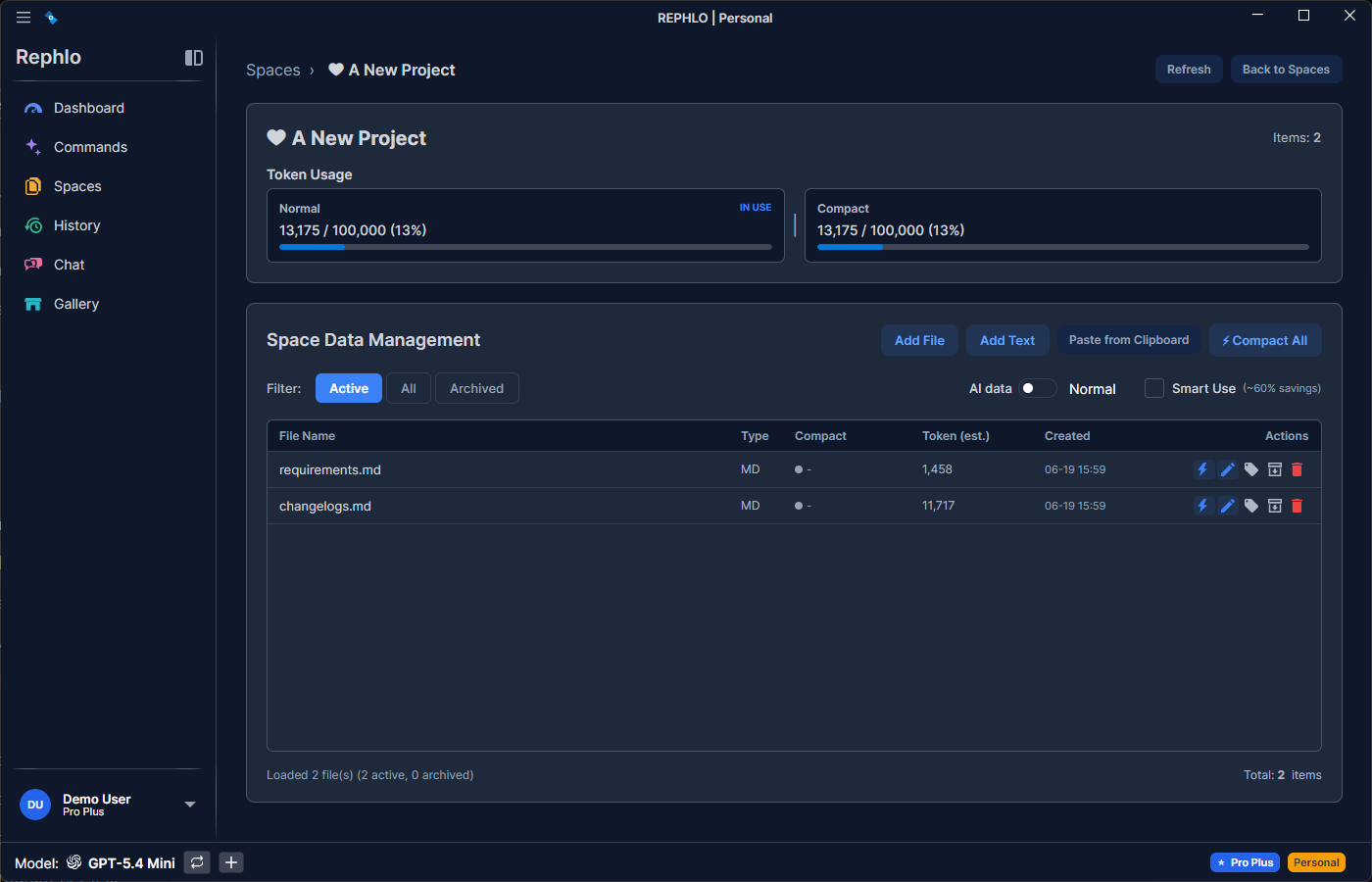 The Space data view showing the Data mode selector (Smart Search / Compact), token-usage cards, and per-file compaction actions.