Core Concept: Dashboard & Navigation
Rephlo is an AI workspace that lives inside every app you already use. Its interface is designed to be unobtrusive: it stays out of your way until you need it — living in the system tray (macOS menu bar / Windows notification area) — and surfaces as a full Dashboard for chat, Knowledge Spaces, and command management, or as a lightweight overlay when you trigger it on selected text via Smart Select.
The Dashboard
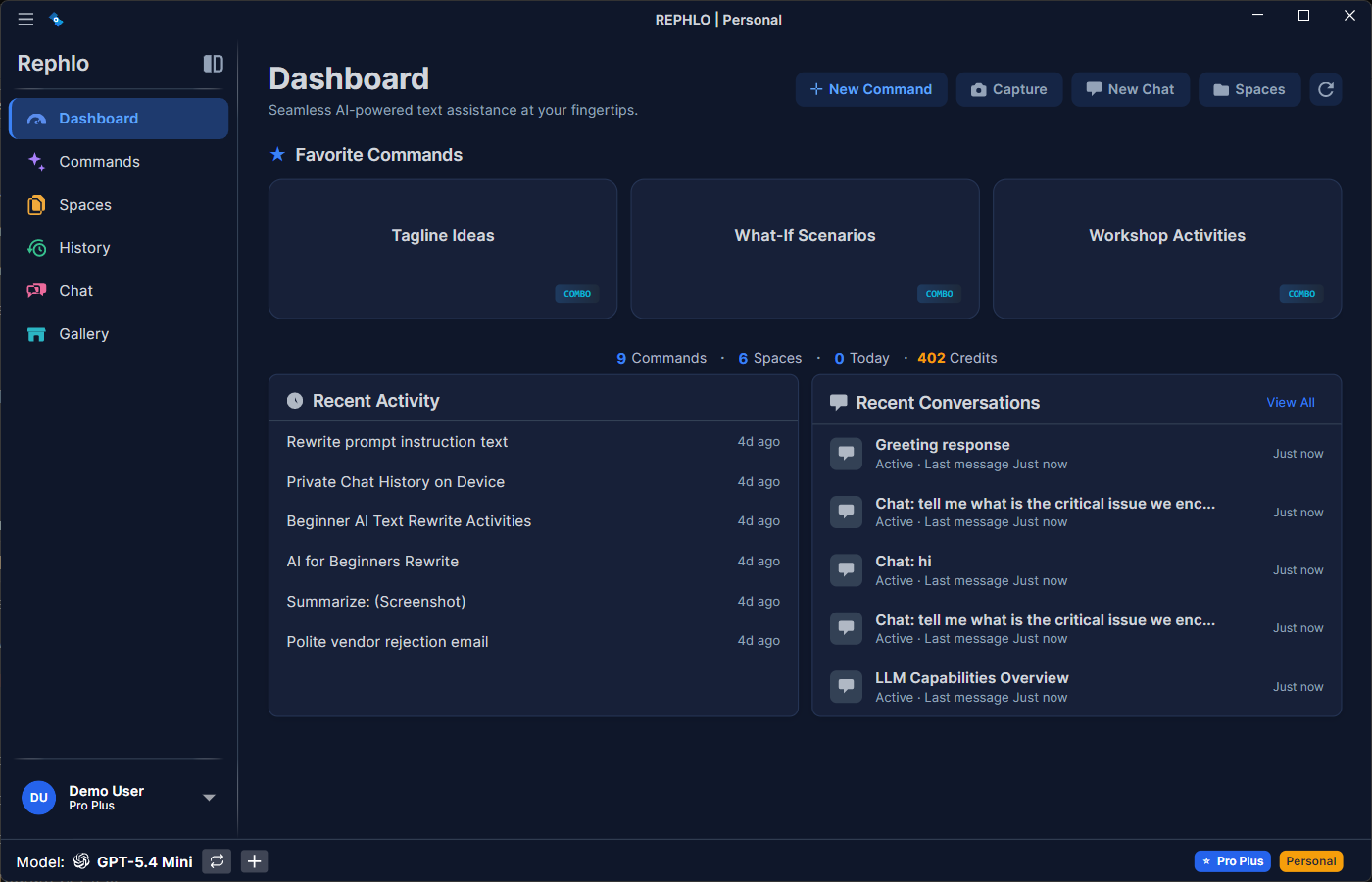
The Dashboard is your "Home Base." Open it by left-clicking the tray icon or using your configured hotkey (when set to open the Dashboard).
Key Sections
- Quick Actions Bar — instant access to common tasks:
- New Command — create a command from scratch
- Capture — take a screenshot for Visual Intelligence
- New Chat — start an AI conversation
- Spaces — open the Spaces browser
- Refresh — reload dashboard data
- Favorites — your pinned, most-used commands (up to 10) for one-click execution.
- Stats Bar — usage at a glance: total Commands, number of Spaces, and Today's executions.
- Recent Activity — a log of your last few command executions, showing what was processed and when.
- Recent Conversations — your latest chat sessions, so you can quickly resume an ongoing conversation.
Welcome State
A new user without commands or activity sees a Welcome State with getting-started tips and quick links to create a first command or explore the Template Gallery. Once you create your first command and run it, the stats and activity sections populate.
Sidebar Navigation
The sidebar provides access to all major sections. Rephlo uses ViewModel-first navigation: selecting a section swaps the main content area to that section's view.
| Section | Purpose |
|---|---|
| Dashboard | Home screen with favorites, stats, and recent activity |
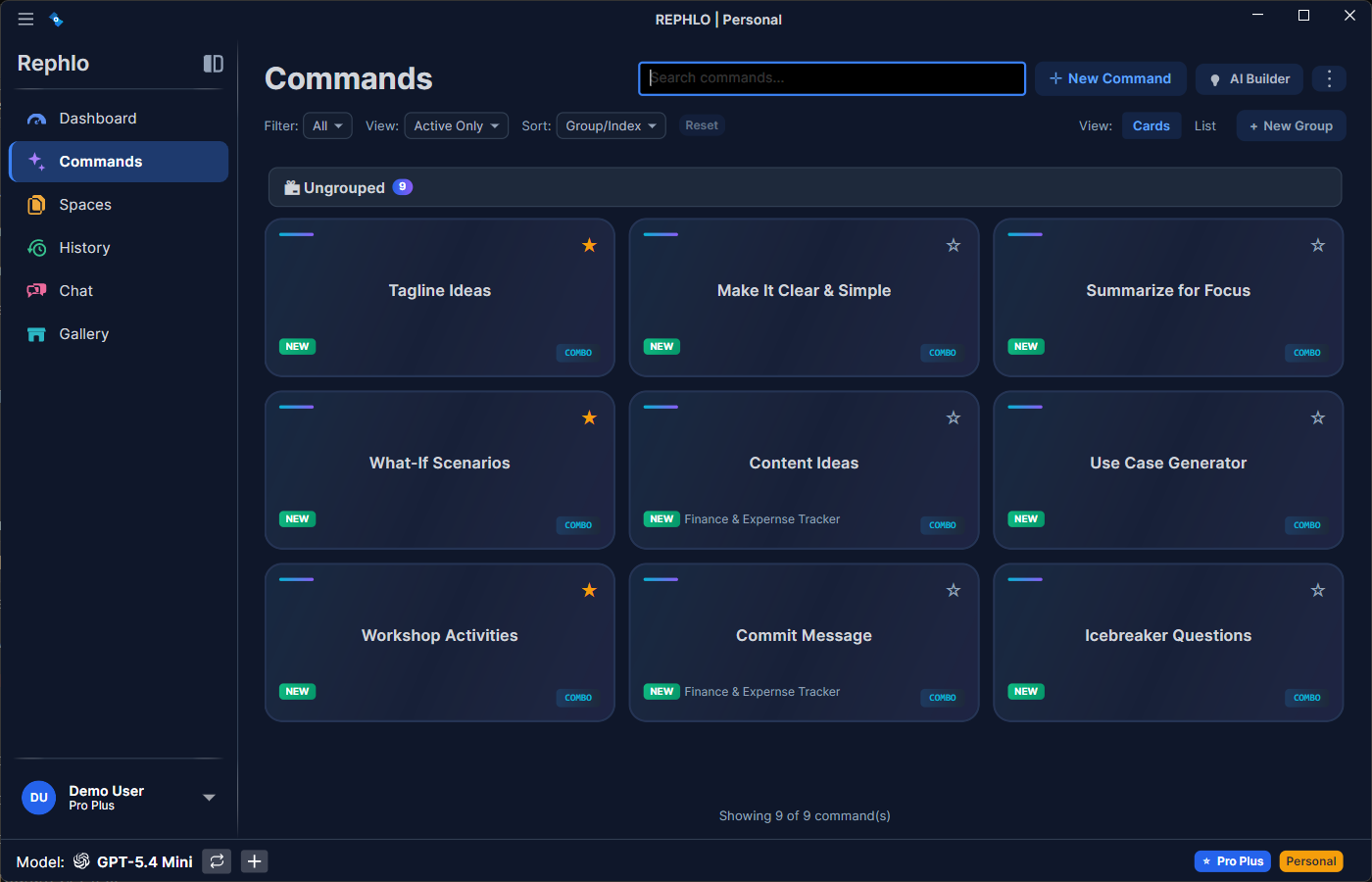
| Commands | Browse, create, edit, and organize your command library |
| Spaces | Manage knowledge bases |
| History | View past executions with a full audit trail |
| Chat | Interactive AI conversations |
| Gallery | Browse and import templates |
| Settings | Application configuration (gear icon at bottom) |
Account Menu
Once you're signed in, your avatar at the bottom of the sidebar opens a flyout:
- Your email and active organization badge (multi-org accounts only)
- Credits balance
- Buy Credits
- Upgrade/Change Plan
- Account Settings
- Sign in to a different organization... (multi-org accounts only)
- Help — a submenu with:
- Documentation — opens the docs site
- Keyboard Shortcuts — opens Settings → Hotkeys
- License — opens Settings → License (see License & Trial)
- Check for Updates
- About Rephlo — opens Settings → About
- Report inappropriate content — opens rephlo.app/contact/?subject=report in your browser. The same link also appears under Settings → About → Contact & Support, regardless of whether you're signed in.
- Logout
When you're signed out, or using BYOK mode, this slot shows a Login button instead.
System Tray Icon
Rephlo lives in the system tray (macOS menu bar, Windows notification area):
- Left-click the icon — brings Rephlo to the front (opens the Dashboard).
- Right-click the icon — opens a short menu with Show Rephlo and Exit.
Context Overlays
When you trigger Rephlo via a hotkey or drag-select on highlighted text, you don't see the full dashboard — you see a lightweight Context Overlay instead.
- Purpose: keep you focused on your current application.
- Behavior: it floats near your mouse cursor (or the center of the screen), lets you pick a command, runs it, and disappears once the result is delivered. If the command has a Default Space, it executes immediately without prompting you to choose one.
Tip: You can test the overlay anytime from Settings → Hotkeys using the Test Overlay button.
For the full execution flow (text injection, clipboard preservation, streaming, cancellation), see Execution Workflows.
Zoom Controls
Rephlo supports app-wide zoom for accessibility and comfort. The zoom level applies to all text and UI across every screen.
| Action | macOS | Windows / Linux |
|---|---|---|
| Zoom In | Cmd+Plus (Cmd+=) | Ctrl+Plus (Ctrl+=) |
| Zoom Out | Cmd+Minus | Ctrl+Minus |
| Reset Zoom | Cmd+0 | Ctrl+0 |
These shortcuts work from anywhere in the app — useful for presentations, accessibility needs, or small-text screens.
History
Accessible from the sidebar, the History view shows a detailed log of past interactions:
- Audit — see exactly what was sent to the AI and what came back, including provider, model, tokens, and status.
- Reuse — click any history item to copy its result again.
Learn more in History & Audit.
Next Step: Ready to master the tools? Proceed to Managing Commands.