Template Gallery
Don't want to build commands from scratch? The Template Gallery offers a curated collection of pre-built, production-ready commands created by the Rephlo team. Browse by category, preview what each one does, and install it as a real command with one click.
What is the Template Gallery?
The Template Gallery is like an app store for commands. Each template is a ready-made prompt grouped into a category pack. Installing a template creates a normal command in your library that you can run, edit, group, and favorite like any other.
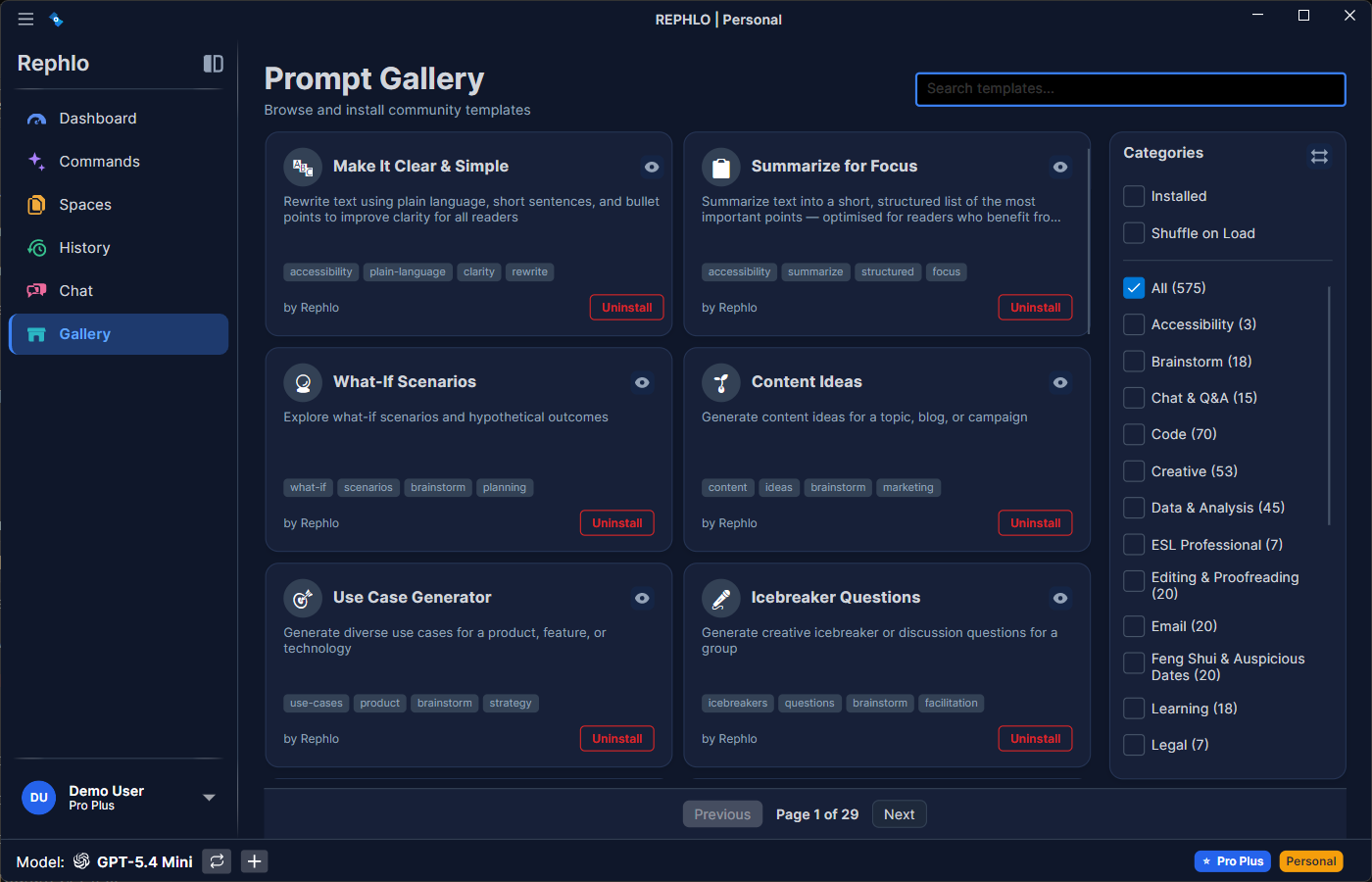
The gallery shows a search box and category packs (for example, Email, Code, Writing). Each template appears as a card with its name, an emoji icon, and a short description, plus an Install action. Within a category you can also install the whole pack at once. Templates are sorted by rating and then by install count.
Template Categories
The gallery ships with built-in category packs, including:
- Email — refusals, follow-ups, introductions, complaint responses, announcements, cold outreach, and more
- Writing and Rewrite — drafting and reworking prose
- Editing & Proofreading — clean-ups, grammar, and clarity passes
- Summarize — condense documents and notes
- Translate — formal, casual, and technical translation
- Code — reviews, docstrings, and code explanation
- Marketing Copy, SEO, Social Media, Sales, and Sales Outreach
- Research, Data & Analysis, and Brainstorm
- Learning, Productivity, Creative, Chat & Q&A, and Support
- Legal, ESL Professional, Accessibility, and specialty packs
New packs and templates are added over time, and existing templates are refreshed as they improve.
Installing Templates
- Open the Template Gallery from the sidebar (or the gallery icon).
- Browse a category or use the search box (search matches a template's name, description, and tags).
- Click a template to preview its prompt and behavior.
- Click Install.
- The command appears in your Commands list immediately, marked with a NEW badge until you first edit or run it.
Install a Whole Pack
You can install every not-yet-installed template in a category at once. Already-installed templates are skipped, and if one item fails the rest still install.
What Happens on Install
When you install a template, Rephlo:
- Creates a command using the template's name, description, instruction, and execution mode (most templates are Combination mode).
- Appends a standard instruction note so the AI returns ready-to-use text with no extra commentary.
- Places the new command at the end of your ungrouped commands and increments the template's install count.
Installing the same template twice is prevented — a template shows as already installed once its command exists.
Updating and Uninstalling
- Updates: When the Rephlo team ships an improved version of a built-in template, your installed command is automatically synced to match the latest instruction and details the next time the gallery initializes.
- Uninstall: Uninstalling a template deletes the command it created. Your own edits to that command are removed along with it, so export anything you want to keep first (see Import & Export).
Customizing Installed Templates
Templates are starting points, not final products. After installing:
- Open the installed command for editing (see Managing Commands).
- Modify the Instruction to match your style and specific needs.
- Rename it to something memorable.
- Optionally assign it to a Group or mark it a favorite.
- Save your customized version.
Example: The "Email Writer" template might be too formal. Edit it to say "Write in a friendly but professional tone" instead.
Template Quality
All templates in the gallery are:
- Written with best-practice prompting techniques, including explicit structure and edge-case handling
- Tuned to output clean, ready-to-use text without extra commentary
- Maintained by the Rephlo team and refreshed over time
Next: Prefer to write your own? Try the AI Command Builder, or learn how commands are organized in Command Groups.