AI Command Builder
Not sure how to write the perfect prompt? The AI Command Builder lets you describe what you want in plain language, and it crafts the command for you through a chat-style conversation. You can keep refining, then create the command, save it as a draft, or continue editing it in the full command editor.
What is the AI Command Builder?
Instead of hand-writing a command's instruction, you have a conversation with the AI. It streams a suggestion back in real time, then shows a structured command card you can review and tweak.
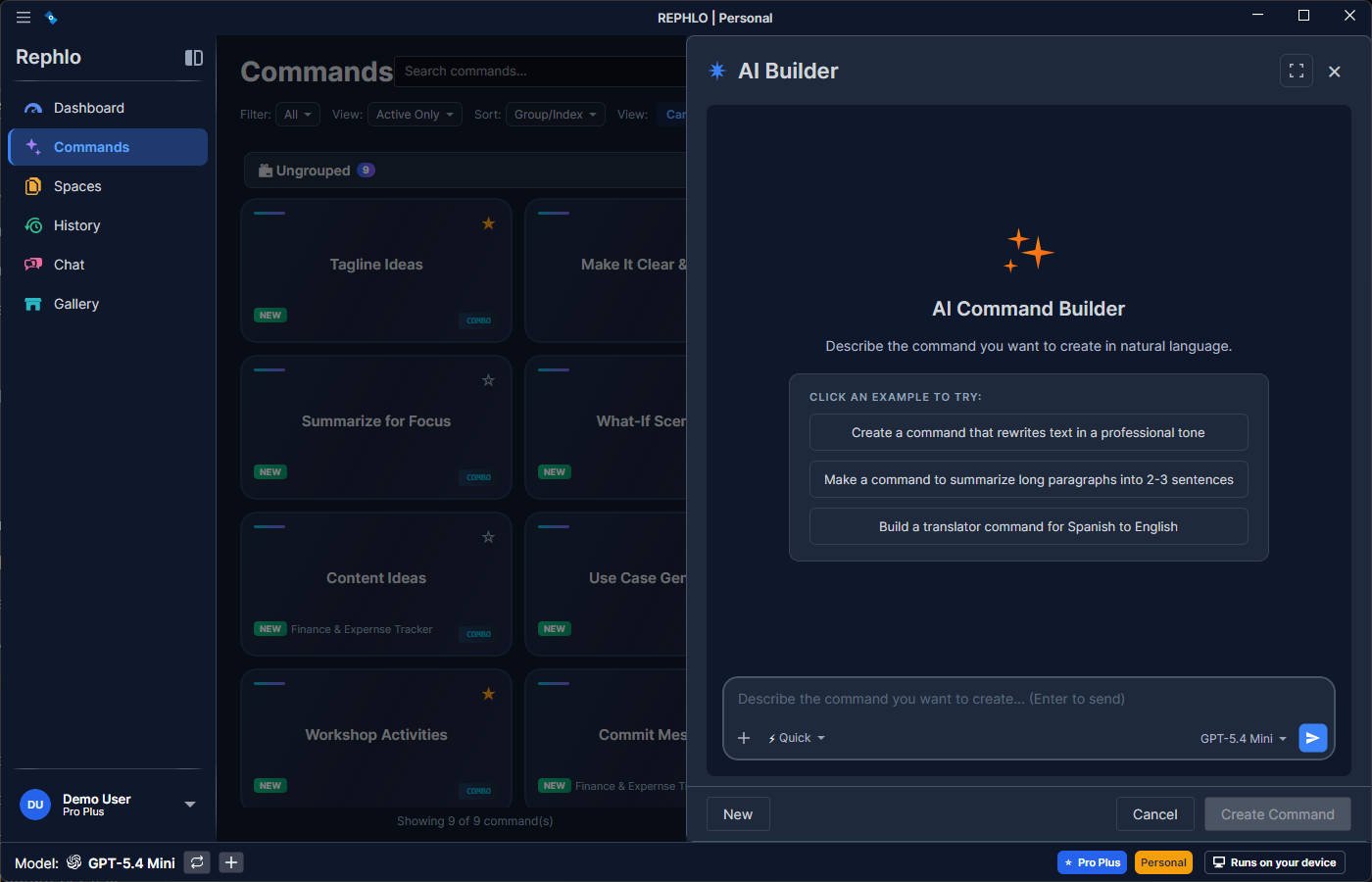
The AI Builder panel is a chat interface. You type a request such as "I want a command that rewrites my emails to sound more confident without being aggressive." The assistant streams a reply and produces a command card with a suggested Name, Description, full Instruction, recommended execution Mode, suggested tags and group, and a confidence percentage. You can keep chatting to refine the result.
How to Open the AI Builder
There are three ways to open the AI Builder, and each sets the context for what it does:
| Entry point | Context | What it does |
|---|---|---|
| New with AI on the Commands view | Direct | Start a fresh command from a blank prompt |
| AI Builder button in the Add Command panel | Add New | Carries your typed instruction in as the starting prompt |
| Improve with AI when editing a command | Improve Existing | Seeds the chat with the existing instruction so you can refine it |
In Improve Existing mode the Create Command button is hidden — instead you use Continue to Edit to take the improved instruction back into the command editor.
How to Use the AI Builder
Step 1: Describe Your Goal
- Open the AI Builder (see the entry points above).
- Describe what you want the command to do, for example:
- "I need to summarize legal contracts into simple language."
- "Help me fix my code and explain what was wrong."
- "Translate marketing content while keeping it catchy."
If no LLM provider is configured, the panel shows a Setup Required state with a sign-in / setup prompt instead of the chat.
Step 2: Review the Suggestion
The AI streams its response token by token, then renders a command card showing:
- A suggested Name.
- A brief Description.
- The full Instruction (the combined persona and task text).
- A recommended Execution Mode (Combination by default; see Commands).
- Suggested Tags and a suggested Group, when relevant.
- A Confidence percentage indicating how well the AI understood your intent.
All of the Name, Description, and Instruction fields are editable — any edits you make are applied when you create the command, save the draft, or continue to edit.
Step 3: Refine Through Conversation
Not perfect? Keep chatting in the same panel:
- "Make it shorter / longer."
- "Focus more on [specific aspect]."
- "Add instructions to handle [edge case]."
- "Change the tone to be more [formal / casual]."
Each message refines the existing suggestion rather than starting over.
Step 4: Create, Save as Draft, or Continue to Edit
When a suggestion is ready you have three choices:
Create the Command
- Click Create Command to add it to your library immediately.
- Any existing draft is automatically cleared.
- The command appears in your Commands list right away.
Save as Draft
- Click Save as Draft to keep working on it later.
- The draft is preserved even if you close Rephlo.
- Next time you open the AI Builder, it asks whether to resume the draft.
Continue to Edit
- Click Continue to Edit to hand the suggestion off to the full command editor.
- This is the path used in Improve Existing mode and any time you want fine-grained control before saving.
The command suggestion card shows the suggested command name with a confidence percentage, a description, the full instruction text in a quoted block, the chosen Mode, and any suggested tags and group, with action buttons for Create Command, Save as Draft, and Continue to Edit.
Confidence Scoring
The AI Builder displays a confidence percentage indicating how well it understood your intent:
| Score | Meaning |
|---|---|
| 90-100% | High confidence — the command should work as expected |
| 70-89% | Good confidence — may need minor refinement |
| 50-69% | Moderate — consider adding more detail to your description |
| Below 50% | Low confidence — try rephrasing or providing examples |
Tip: If the confidence is low, try providing example inputs/outputs or being more specific about the desired outcome.
Example Conversations
Creating a Customer Support Command
You: "I want to reply to angry customer emails without sounding defensive."
AI Creates:
- Name: "Customer Response"
- Instruction: "You are a calm, empathetic customer support specialist. Craft a professional response to this complaint that acknowledges their frustration, takes responsibility where appropriate, and offers a solution without sounding defensive..."
Creating a Technical Writer Command
You: "Simplify technical documentation for non-technical readers."
AI Creates:
- Name: "Simplify Tech Docs"
- Instruction: "You are a technical writer who specializes in making complex topics accessible. Rewrite this technical content for a general audience. Avoid jargon. Use analogies. Keep the core accuracy intact..."
Tips for Better Results
- Be Specific: "Make emails sound professional" → "Make emails sound confident but approachable, suitable for a tech startup culture."
- Give Examples: "Like how [person/brand] writes."
- Mention Edge Cases: "But don't change technical terms."
- State Anti-Goals: "Don't make it too long" or "Avoid sounding like a robot."
Draft Persistence
The AI Builder preserves a single work-in-progress command so you never lose one you are developing.
How Drafts Work
What Gets Saved
When you save a draft, Rephlo preserves:
- The command name, description, and full instruction.
- The suggested execution mode.
- The confidence score.
- The suggested tags and group name.
- Your full conversation history with the AI (replayed when you resume).
Resuming a Draft
When you open the AI Builder with an existing draft:
- A dialog asks Resume Draft? with Resume Draft or Start Fresh options.
- Choose Resume Draft to restore the conversation and card and continue where you left off.
- Choose Start Fresh to discard the draft and begin a new command.
Managing Drafts
- Only one draft can exist at a time.
- Saving a new draft replaces any existing one.
- Creating a command from a draft automatically clears it.
- Drafts persist until you create the command or explicitly discard them.
If you have unsaved changes and close the panel, Rephlo offers Save Draft, Discard, or Cancel so nothing is lost by accident.
Tip: Use drafts when experimenting with complex prompts or refining a command over multiple sessions.
Next: Skip the writing entirely and install ready-made commands from the Template Gallery.