Managing Spaces
Spaces are knowledge bases that give the AI context. Create a distinct Space per context — "Work Project", "Brand Voice", "Personal Budget" — fill it with documents, and attach it to your commands.
How Spaces Provide Context
When a Space is attached to a command, its content is included in the prompt sent to the AI. Each Space stores a collection of ingested files (its Space Data), and the extracted text from those files becomes the context the model sees.
How much text is sent depends on the Space's data mode:
- 🔍 Smart Search (the default) sends your raw content and is free — the full text for a small Space, or only the most relevant parts once the Space grows.
- 🗜️ Compact sends AI-generated summaries instead, saving tokens at the cost of detail. Building those summaries uses credits (they're reused afterward).
See Data Modes & Compaction for the full picture of how modes, the token budget, the credit safeguards, and compaction interact.
Why Smart Search is the default: Retrieval (RAG) searches your documents' raw text, which Rephlo keeps for every Space. Smart Search is the default because it's free at any size — it scans a small Space in full and retrieves only the relevant parts of a large one. Switch a Space to Compact only when you want every request to carry pre-summarized text (and you're fine spending credits to build those summaries).
Creating a Space
- Open the Dashboard → Spaces tab.
- Click New Space.
- Name — required, unique, max 100 characters (e.g., "Rephlo Docs").
- Description — optional context, max 500 characters.
- Emoji & Color — optionally pick an emoji icon and a hex color (
#RRGGBB) for visual identification in the UI. - Create.
Adding Data (Ingestion)
Once a Space exists, feed it information.
- Open the Space details.
- Click Add Files, or drag-and-drop files into the window.
- Supported formats: PDF, DOCX, TXT, MD, and CSV.
- Processing: a progress bar shows Rephlo extracting ("ingesting") the text. Each file becomes a Space Data item with its extracted content and a calculated token count.
Scanned PDFs. A PDF with no text layer is recognized on your own computer first, then indexed like any other file — nothing is uploaded for recognition. Documents longer than the 200-page on-device limit are indexed from whatever text they already had and marked Partial OCR (see below). Full detail in How Rephlo Reads Your Files.
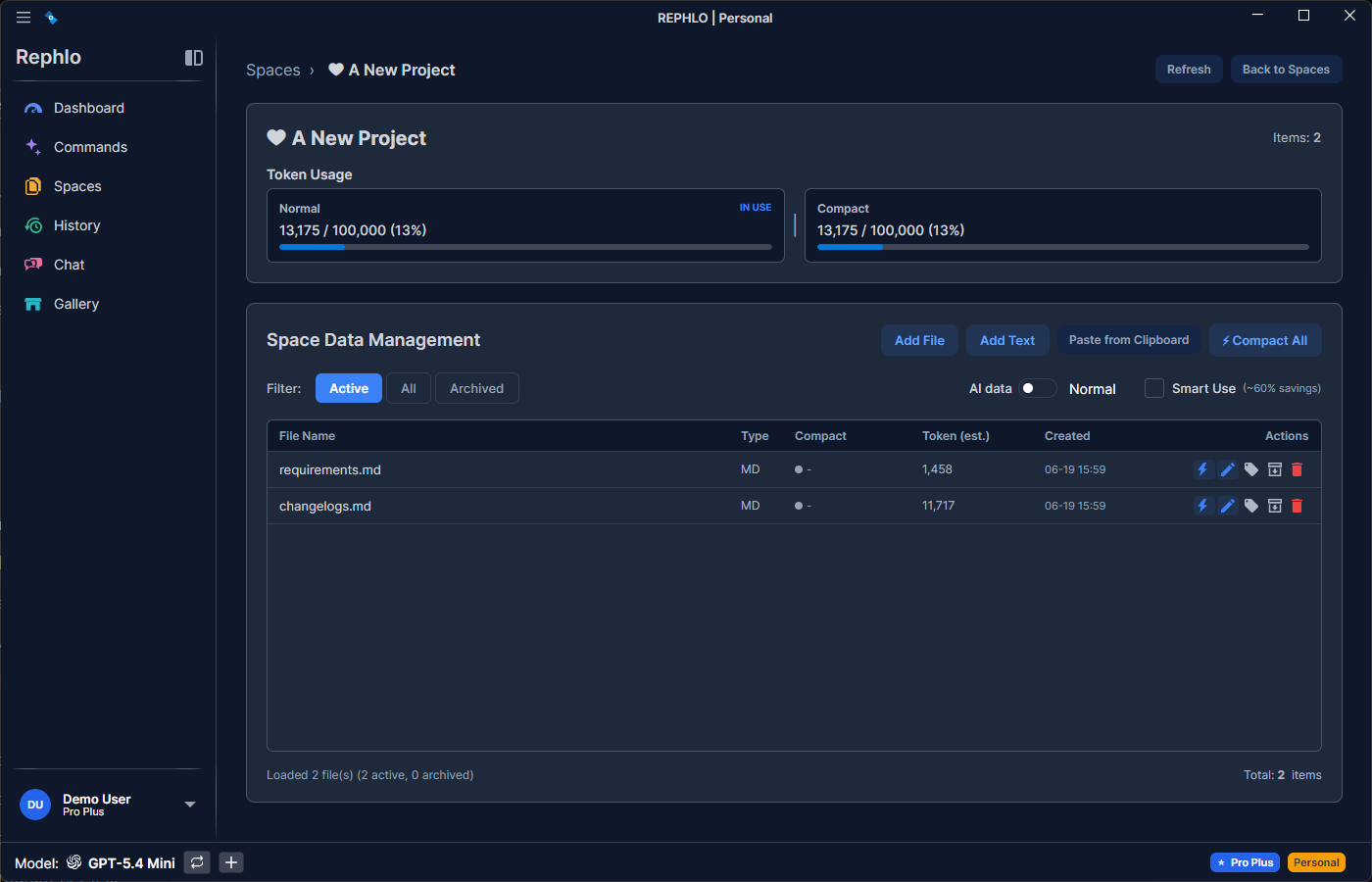
Viewing Space Content
You can review everything currently in a Space.
- Inspect — click a file to see the exact text Rephlo extracted. Useful for confirming a PDF was read correctly.
- Remove — delete obsolete files to keep the Space lean.
The "Partial OCR" badge
A document tagged Partial OCR is longer than the on-device recognition limit of 200 pages. Rather than index a truncated document silently, Rephlo indexes the text the file already carried and flags it, so you know that searches over that document may be missing pages.
If you need the whole thing searchable, split it into smaller files and add them separately.
Each Space Data item tracks its own raw token count and, once compacted, its compact token count. The Space sums these into two running totals: the raw total and the compact total.
Space Settings
Token Budget
Each Space has a token budget capping how much content it can hold.
- Default: 100,000 tokens. Range: 1,000 to 1,000,000.
- Why it matters: attached Space content goes into the prompt, so larger Spaces cost more tokens per request.
- Tracked per mode: the Space keeps a separate running total for raw content and for compact content, so you can see the size in either mode.
- Recommendation: for most projects, 50,000-100,000 tokens is plenty.
Data Mode
Pick one of two mutually-exclusive modes with the selector at the top of the Space's data view (an ⓘ info icon and a live helper line explain the current choice):
| Mode | What it sends | Credits | Best for |
|---|---|---|---|
| 🔍 Smart Search (default) | Your raw content — full text when the Space is small, only the relevant parts when it's large | Free | Any size of Space; precise formatting, code, structured data, and local search |
| 🗜️ Compact | AI-generated summaries | Uses credits to build (reused after) | Small Spaces queried broadly, where you want every request kept token-light |
A command can override a Space's data mode for that command only — see per-command data mode override.
Space Maintenance
Building Compact summaries
When a Space is in Compact mode, compaction replaces a Space Data item's raw text with a dense AI-generated summary, preserving the meaning while shrinking the size. The original raw text is always kept as a fallback.
- Building summaries uses credits, so compaction is never silent — Rephlo asks you to confirm the credit cost before every action.
- Actions: Compact a single file, Compact All uncompacted files, or Regenerate an existing summary. Choosing Compact mode also offers to compact your current files right away.
- Strategies: Aggressive, Balanced (recommended), or Conservative — trading more token savings against more detail retained.
- Large-file warning: compacting a single file of roughly 50,000 tokens or more prompts an extra credit-cost confirmation first.
- Credit guard (large Spaces): once a Space's raw total reaches about 128,000 tokens, Compact is disabled and all compaction is blocked — Smart Search handles large Spaces efficiently and for free. See Data Modes & Compaction.
Note: Local RAG search runs over each file's raw text — which Rephlo keeps even in Compact mode — so semantic retrieval works the same in both modes. (The compact summaries aren't separately indexed; in Compact mode they're sent only when Rephlo falls back to sending the whole Space.)
Smart Mode Advisor: while a Space is in Compact mode, Rephlo proactively offers to switch it to Smart Search (free) if the Space becomes large, just received a big file, or is tiny. It only ever suggests the switch — it never compacts on its own.
Archive & Unarchive
Spaces support soft-delete via archival.
- Archive — hides the Space from active lists without deleting it (records the archive time). Archived Spaces are excluded from command execution and can't be linked to commands.
- Unarchive — restores the Space to active status.
This keeps your workspace tidy while preserving Spaces for later.
Spaces and Commands (Many-to-Many)
A Space can be linked to many commands, and a command can pull from many Spaces. One linked Space can be a command's default, used for quick execution without prompting. During a single command execution there is one active Space at a time; you can switch the active Space at runtime from the Dashboard or command runner.
For assigning multiple Spaces to a command, see Multi-Space Assignment.
Deleting a Space
- Go to the Spaces list and choose Delete.
- Warning: this permanently removes the Space and its file references from Rephlo. The original files on your disk are not touched.
Next: Configure your AI engines in Managing Providers, or dig into Data Modes & Compaction.