Web Install & Deep Links
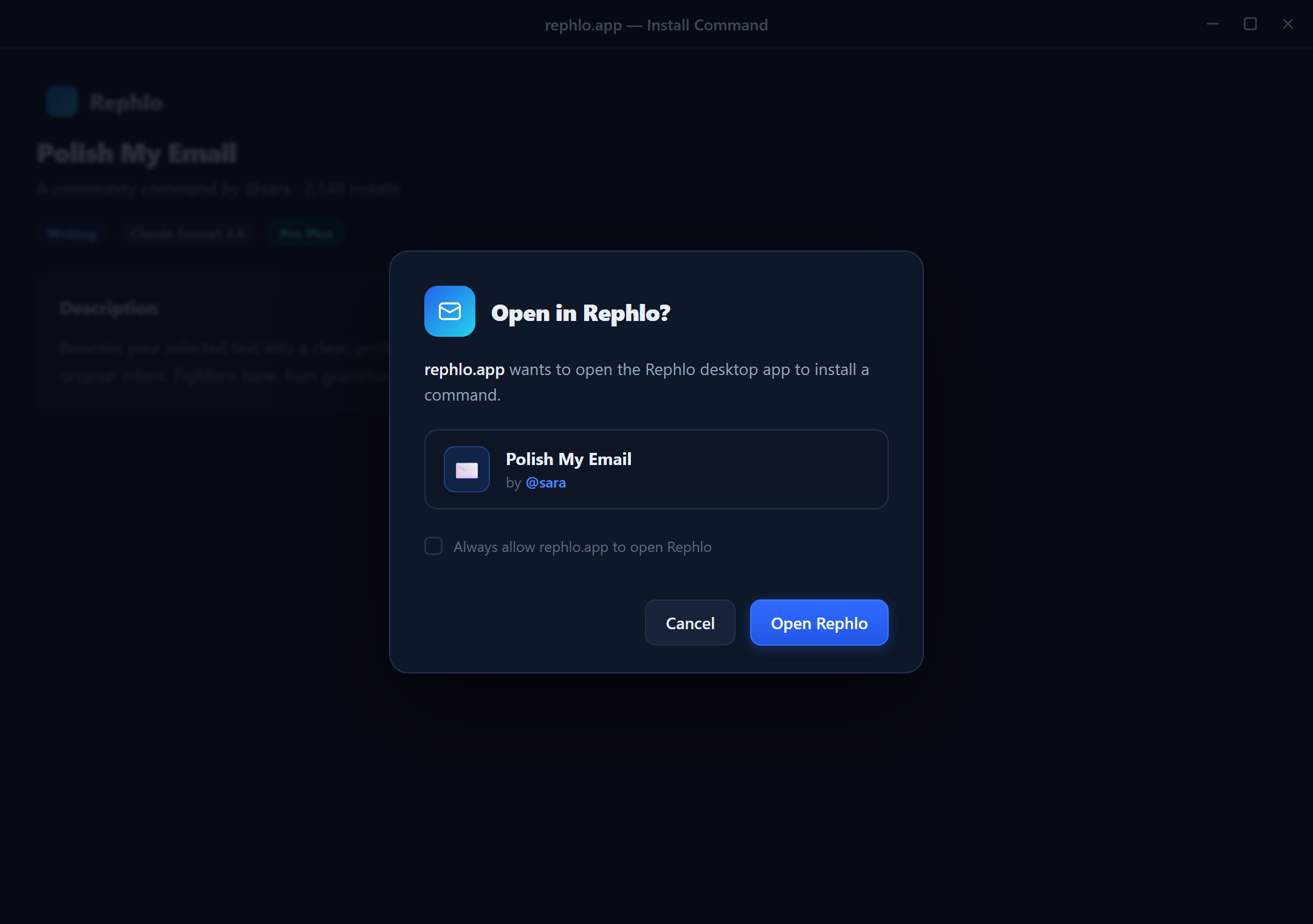
You don't have to recreate commands by hand to use them on your desktop. When you find a command in the Rephlo web gallery, your account, or your organization, you can send it straight into the desktop app with one click. This works through a deep link — a special app.rephlo:// link that the web pages hand off to the installed app.
This page explains how install links work, what the install preview shows you, and how Rephlo handles installing several commands at once.
How a web install works
When you click Install on a web page, the browser opens an app.rephlo:// link. Your operating system recognizes that this link belongs to Rephlo and hands it to the desktop app. Rephlo then fetches the command details, shows you a preview, and adds the commands you confirm.
Prerequisites
For a web install to succeed:
- The Rephlo desktop app must be installed on your computer.
- The
app.rephlo://link handler must be registered with your operating system. Rephlo registers this for you on first run (on Windows it adds a per-user entry that needs no administrator rights). - You must be signed in for any command that is private to you or your organization — public gallery commands don't require a login.
The different install links
Rephlo understands several kinds of install links, depending on where the command comes from:
| Link type | Where it comes from |
|---|---|
| Gallery install | A single public command, opened by its slug or ID from the gallery. |
| Web install | One or more public commands referenced by ID. |
| My (private) install | Commands that are private to your own account. |
| Org install | Commands shared within your organization (workspace), scoped to that organization. |
A gallery install link installs a single command (one slug or ID). The web, private, and org install links support batch installs — the link can carry a comma-separated list of IDs, and Rephlo removes duplicates automatically.
The install preview
Before anything is added to your app, Rephlo shows an install preview so you stay in control. The preview lists every command in the link with:
- Its name, group, author, and language.
- A checkbox to include or exclude it from this install.
- A clear marker if a command is already installed — those are pre-unchecked so you don't create duplicates by accident.
From the preview you can:
- Select all or deselect all of the not-yet-installed commands.
- Optionally choose a group override so the incoming commands land in a group you pick, rather than their original group.
- Confirm with the Install button, which shows how many commands are selected. The button stays disabled until at least one command is selected.
 The install preview dialog: a checklist of incoming commands (name, group, author, language), "already installed" badges, Select All / Deselect All controls, an optional group-override dropdown, and an Install button labeled with the selected count.
Installing several commands at once (batch install)
When a link contains multiple commands, Rephlo installs all the ones you keep checked in a single pass. As part of this it:
- Detects conflicts by flagging commands you already have, so you can skip them.
- Resolves or creates groups — if an incoming command belongs to a group you already have (matched by name), it joins that group; otherwise Rephlo creates the group for you. A group override, if you set one, takes priority.
- Cleans up the instruction for combination-style commands and adds Rephlo's standard "output ready-to-use text only" guidance so installed commands behave consistently.
Installed commands arrive marked as New so they're easy to spot in your library, ready to edit or run.
If something goes wrong
- App not installed — the link can't open Rephlo. Install the desktop app first from rephlo.app/download, then click the link again.
- Not signed in — private and organization commands need a login. Sign in and retry. See Signing In & Authentication.
- Invalid or expired link — if the command IDs can't be found, nothing is installed and you can safely try again from the web page.
Related pages
- Cloud Sync & Versioning — publish your own commands to the cloud.
- Command Gallery — browse and install commands from the web.
- My Commands — manage the commands in your account.
- Managing Commands — edit and organize commands once they're installed.